Manual
Everything the display does.
And how to use it.
McpVue shows what your agents report, keeps your messages, tasks, notes, and dashboards, and serves its own web pages on your network. This manual covers McpVue 0.2.42 on the SenseCAP Indicator D1 and the Waveshare RLCD. The board screens below are drawn by McpVue's own drawing code, the code the boards run, rendered on a computer at each panel's resolution, with the examples used across this site. The web pages are the board's own pages with the same examples.
01 · Getting started
From the box
to your desk.
Install the firmware.
Open the web flasher in Chrome, Edge, or Opera on a computer (phones cannot talk to USB), choose your board, connect it with a USB data cable, and press Connect and install. The first time, enter your licence code; it activates that board for every later update. A board that still runs its factory firmware is erased first. Later updates keep your Wi-Fi, settings, lists, and dashboards.
Which release: for the D1 and the RLCD choose the beta, the full interface that this manual describes: today 0.2.32 on the D1 and 0.2.14 on the RLCD. The manual is written for 0.2.42; what came later than a board's beta arrives with its next release. The RLCD's stable release, 0.0.69, is the earlier message screen, messages and tasks with the two buttons (16).
On the SenseCAP Indicator D1 one USB-C cable reaches both of its chips: the flasher installs the ESP32-S3 (the "USB Serial (CH340)" port), then asks for the RP2040, which plays the sounds and runs the SD card: unplug the cable, hold the RP2040's boot button inside the case with a needle, plug the cable back in and release the button; a drive named RPI-RP2 opens and the flasher writes it. When the screen stays dark afterwards, press the reset button or unplug the board once.
Connect it to Wi-Fi.
The board starts with the McpVue sign, then shows a QR code. Scan it with Espressif's ESP BLE Provisioning app, choose your network, and enter its password. The screen tells you when the password is wrong or the network is not found.
Note its address.
A message from McpVue shows the network, the board's IP address, and the MCP address
http://mcpvue.local/mcp; Status shows them too. Its web pages are athttp://mcpvue.local; give it another name in Settings if you have more than one board.Connect your agents.
Add the MCP address to Claude Code, Codex, or OpenCode (02). To reach the board from outside your network, turn on remote access.
02 · Connect your agents
One address
for every agent.
The board runs an MCP server at http://mcpvue.local/mcp: plain HTTP on your network, without an account or token. Name the server screen.
Claude Code
claude mcp add --transport http screen http://mcpvue.local/mcpCodex
codex mcp add screen --url http://mcpvue.local/mcpOpenCode
{
  "mcp": {
    "screen": { "type": "remote", "url": "http://mcpvue.local/mcp",
                "enabled": true, "oauth": false }
  }
}
Any other MCP client works with the Streamable HTTP transport. On Linux, .local names need an mDNS resolver (avahi); otherwise use the IP address from the board's network message. Every board answers as mcpvue.local until you give it its own name in Settings, so give each board its own name to use several at a time.
| Tool | What it does |
|---|---|
show_message | Shows a message on the display and returns its id (the agent's own, or m1, m2, …). |
delete_message | Removes a queued message by its id. |
queue_status | How many messages are queued, of 50. |
list_messages | The messages with their ids, the start of their text, read or not, and sender; optionally only unread ones, or the first few. |
clear_messages | Removes every message (to the archive), when you ask for it. |
add_task | Adds a task to the list, or changes one by its id. |
list_tasks | The tasks with their ids, text, and due dates; optionally only open ones, or the first few. |
get_task | One task from the list by its id, with its whole text. |
delete_task | Removes a task, for example once it is done. |
add_category | Creates a notes category with a name and an icon, or renames one. |
delete_category | Removes a category; one with notes only together with them. |
add_note | Writes a note into a category: title, text with colors, bold, and links, an optional colored badge, and its author; with an id it replaces that note. |
list_notes | The categories and their notes with ids, badges, authors, and dates, and how many of the 100 notes and 100 categories are used; optionally one category or one badge only. On the D1 the notes on the SD card follow, each saying where it lives. |
get_note | One note with its whole text. |
delete_note | Removes a note. |
report_job | Starts a job (the agent, a title, a short description) or updates it: status, progress in percent, and state (working, question, done, failed). Each report is kept in the job's history. |
list_jobs | The jobs with their states, progress, and status; optionally only one state or one agent. |
get_job | One job in full, with its history of reports. |
delete_job | Removes a job (to the archive); only with a reason. |
list_archive | What was deleted and is still kept, newest first: the board's archive, then the older part on its SD card. Only reads; optionally one kind (message, task, note, category, job) and up to 20 at a time, with a cursor for more. |
dashboard_help | How to build dashboards: every widget and field, graph axes with dates, tables, the heartbeat, and worked examples (09). |
display_info | The board's screen for dashboards: the grid or the RLCD's list, a widget's box for every size, a drawing's coordinates, colours, defaults, and limits; also the firmware version and any update on offer, how many notes and categories are used, and on the D1 the SD card. Agents call it first. |
validate_dashboard | Checks a dashboard without storing it: the first error with the allowed range, and warnings. |
put_dashboard | Stores a dashboard: a new id adds it, a known one replaces it. |
render_dashboard | A dashboard drawn as the board draws it, as a PNG (240 × 240 on the D1, 400 × 300 in black and white on the RLCD) or a 24 × 24 raster of what is drawn where. |
delete_dashboard | Removes a dashboard. |
push_dashboard_values | Feeds the dashboards: values, histories, table rows, and beats; nothing is written to flash. |
list_dashboards | The dashboards with their heartbeat (ok, late, or none); with an id, one whole document, and with values its current values. |
move_from_card | On the D1 with an SD card: brings an older message, task, note, job, or archived thing back from the card by its key. |
On the D1 with an SD card, list_messages, list_tasks, list_notes, and list_jobs take source: "card" (with cursor for the next page) for the older items on the card, and get_note, add_note, and delete_note take a card note's key. list_archive reads the board's archive and then the card's, newest first.
Every answer also carries the ids and counts as JSON (structuredContent), so an agent need not read them from the text. Ask in plain words: "Show 'Deploy finished' in green on the screen for 30 seconds", or "Put 'Renew the domain' on my task list, due Friday." Agents also add important follow-ups to the list on their own.
03 · Using the display
One menu.
Touch or two buttons.
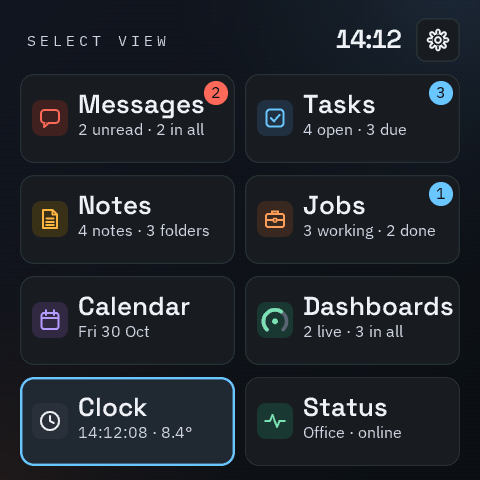
Everything starts at the view menu: Messages, Tasks, Notes, Jobs, Calendar, Dashboards, Clock, and Status, each tile with what waits there. The gear opens Settings; while a newer version is offered, the menu shows an update tile beside the gear: tap it for Update now or Not now. The D1 is used by touch, like a phone; the RLCD with its two buttons.
- The view menu
- On the D1 pull down from the top edge of the screen, or hold the button; on the RLCD hold either button. The tiles count: unread and all messages, open and due tasks, notes and folders, working and done jobs (a blue badge counts the agents that ask you a question), today's date, the dashboards that beat on time and all of them, the time with the outside temperature, and the network. A view you choose grows out of its tile. A swipe up anywhere, or Back, closes the menu.
- Touch on the D1
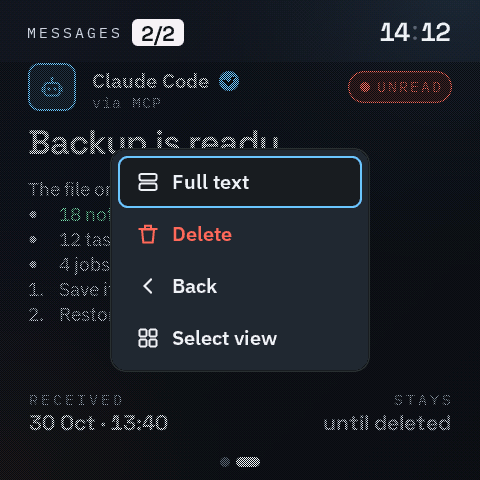
- Tap opens what is under your finger: an item, a tile, an option, the back arrow. Touch and hold half a second over an item for its quick menu (for a message: Full text, Delete, Back, Select view; for a task: Done too). Drag to scroll a list; a quick drag glides on and slows down, and a touch stops it. Swipe sideways on an open message, task, note, or dashboard for the next one (to the left) or the previous one (to the right). Swipe up from the bottom edge to go back: an item closes to its list, a list goes to the clock.
- The D1's button
- The D1 has one button on its side: a press steps to the next item or option, a double press opens or closes, and a hold opens the quick menu over the selected item, or the view menu; in a menu, a hold chooses. Press it and touch the screen together, and hold both for 5 seconds, to reset Wi-Fi and the web password (15).
- The RLCD's buttons
- BOOT steps to the next item or option, KEY opens and chooses. Hold either one for the quick menu over the selected item, or the view menu. Hold both for 5 seconds to reset Wi-Fi and the web password (15).
- The top line
- The view's name and how many items it holds, or which one of how many is open; a globe when remote access is on (green while a browser uses the pages through it); on the D1 an SD card icon while a card is ready, filled as it fills; on the RLCD a battery or, on USB power, a lightning bolt; and the clock.
- Black and white
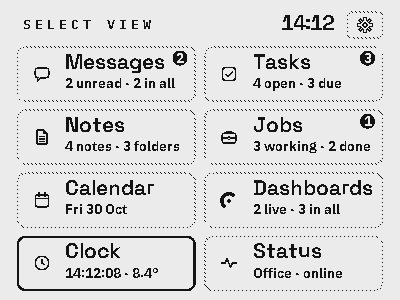
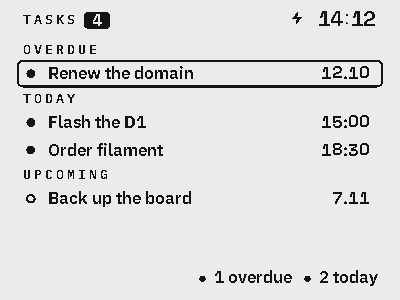
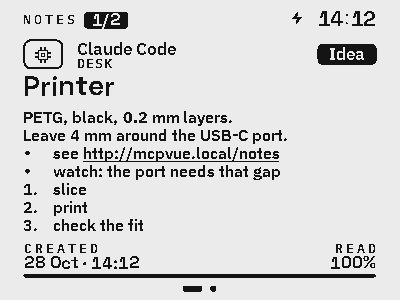
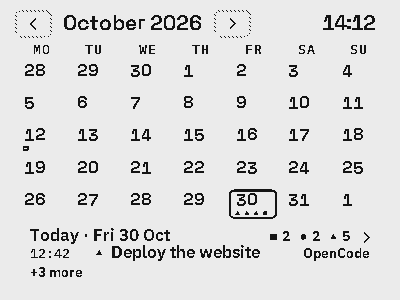
- The RLCD prints every colour as black ink: the chosen item has a heavy frame and the others a dotted one, badges and counts are inverted, coloured words are set in bold, and the calendar tells its kinds apart by shape.
- Longer screens
- Settings, Status, the archive, and long texts show a thin bar at the right and "More" at the bottom while there is more below. A press of a button scrolls a page.
- Sounds
- On boards with a speaker: a two-note chime for a new message, a short rising sound for next and the same backwards for previous, a falling phrase when you delete, a brighter chime when you switch views. Turn them down or off in Settings.
04 · Messages
Short, colored,
and on time.
A message has a title and up to 1024 characters of text. The newest one opens on the screen, unless Open new messages is off in Settings: then usually only its sound plays and the count of unread ones rises, and it waits, unread, until you open it. Up to 50 wait in the queue and survive a restart.
| Field | Values |
|---|---|
value | The text, required. Newlines work; a line starting with - or * is a bullet point and one starting with 1. a numbered item, their wrapped lines indented. Color parts with {green}…{/}, {red}, {blue}, {white}. |
title | One line, up to 64 characters; a longer one moves slowly back and forth. |
color | white, blue, green, or red. |
font_size | small for more text, large for fewer, bigger lines. |
kind | timed disappears after duration_s seconds on screen; confirm stays until you delete it. |
id | A message with the same id replaces the old one, so progress updates do not fill the queue. |
sender | Who sends it, up to 24 characters, so you can tell several agents apart. Tasks added on the board's web page are from Web. |
sender_icon | The sender's icon: assistant, robot, terminal, code, build, test, deploy, monitor, server, calendar, mail, home, or person. |
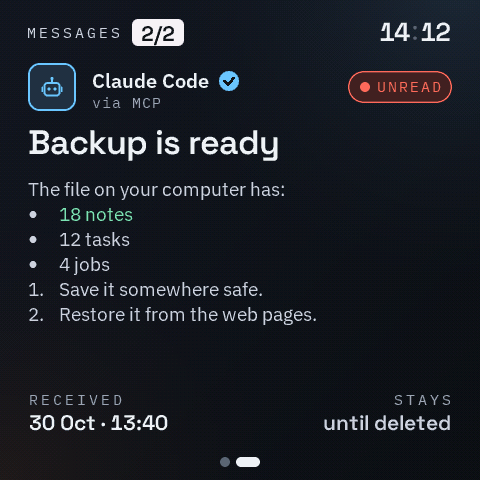
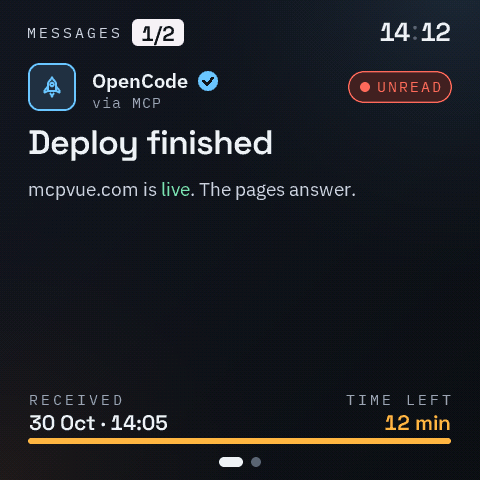
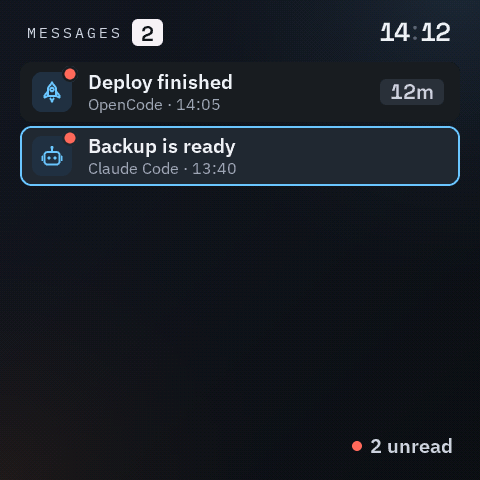
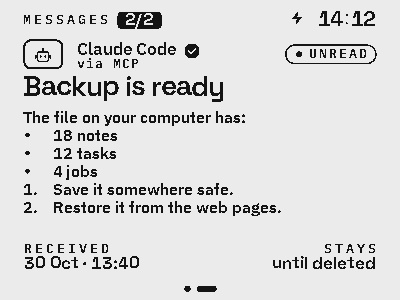
An open messageIt shows its sender with the sender's icon, a blue check when it came with the board's MCP key, the title, the text, when it came, and either the time left with a bar or "stays until deleted". Dots at the bottom show which one of the live messages it is. In Settings choose how Messages show: one at a time (Details), as cards, or as a list.
UnreadA new message is unread until you read it: tap its Unread mark, or hold for the quick menu and choose Mark read. In the lists an unread message has a dot on its icon. With Read when shown on in Settings, a message counts as read once it is on screen.
Full textOn the D1 a tap on the text opens it almost full screen; long text scrolls with a finger, and the cross closes it. With a button, hold and choose Full text; a press closes it.
Timed messagesThey count down only while they are on screen, so you do not miss one while reading another. When one runs out, the next live message opens; after the last, the board shows the message list. A message opened from the calendar goes back to the calendar.
A full queueOn the D1 with an SD card ready, the board first tries to make room by moving an old message to the card, where you can still read it and move it back. Otherwise, when 50 messages wait, a timed message that has run out goes to the archive first. If there is none, and Make room when full is on, a new one takes the place of the oldest one you have read, and the agent is told which; it never takes an unread message that is still live. With nothing to take, the new message is refused: the display says so for a few seconds and the agent is told.
Deleted messagesThey go to the archive (10) for the days set in Settings, and can be restored from there.
05 · Tasks
What is left
to do.
Up to 100 tasks, saved across restarts. When 100 are there, the D1 with an SD card ready first tries to move an old task to the card; an open task that is still due or still has a reminder to come stays on the board. Otherwise Make room when full (in Settings) lets a new task take the place of the oldest done one; with it off, or none done, the new task is refused. Agents add tasks when you ask, and on their own for things you must not forget; you add them on the web pages.
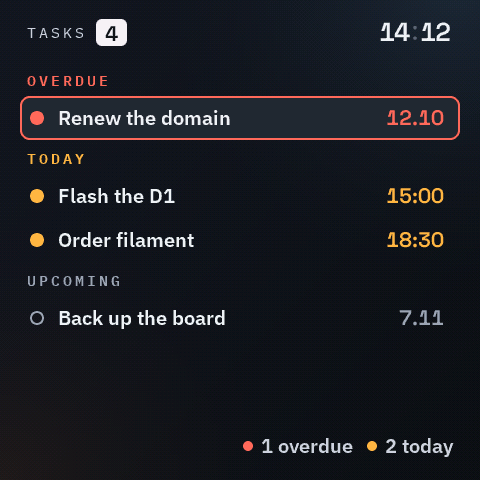
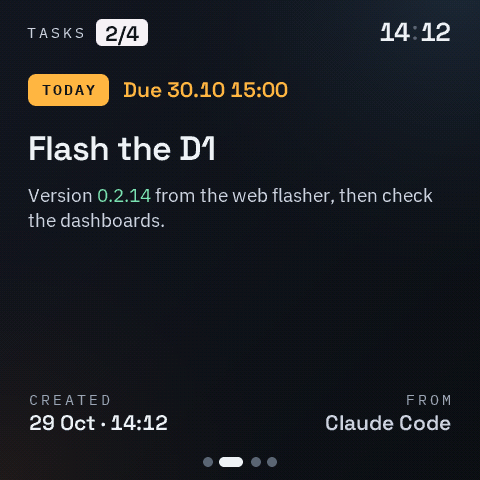
The list groups open tasks as Overdue, Today, and Upcoming, then those without a date, then the done ones. The time shows for today's tasks, the day and month (12.10) for others; overdue ones are red, today's amber. The line at the bottom counts what is overdue or due today. In Settings choose the list, cards, or one task at a time.
An open task shows its due badge and date, its headline and text, when it was made, and who added it. Swipe sideways, or press, for the next one. Hold for the quick menu: Done, Delete, Back, Select view. A deleted task goes to the archive.
Due dates are grey before the day, amber on the day, red once the date or time has passed.
Recurring tasks repeat every few hours, every few days, weekly, monthly, or yearly from the date they start. They are never overdue: the lists, the calendar, and the clock show the next time, amber on its day. A monthly task on the 31st falls on the last day of shorter months. A recurring task can have an end date, its last day: after it the task has no next time (it shows "ended" and stays in the list until you tick it or delete it); without one it repeats forever.
Reminders: a task with a date and a time can remind you with a popup and a sound, at its time or a while before (on the web page: Reminder). The popup shows the task with Open task; a press of a button, its cross, a swipe up, or a tap beside it closes it, and it stays until you do. A recurring task reminds before each time; one that comes while the board is off is skipped.
From an agent, add_task takes a headline (up to 64 characters), a body with the same colors as a message, color, font_size, and due as 2026-10-12 or 2026-10-12T18:00; repeat (hours, days, weekly, monthly, yearly) with every for hours and days makes it recurring from due, ends (2026-11-30) gives the series its last day, and remind_before (minutes) adds the popup with a sound. done: true ticks it: it stays in the list and no longer reminds. sender and sender_icon work as for a message. Without an id the display names the task t1, t2, …; with the id of a task it replaces that task.
06 · Notes
Longer texts,
in folders you name.
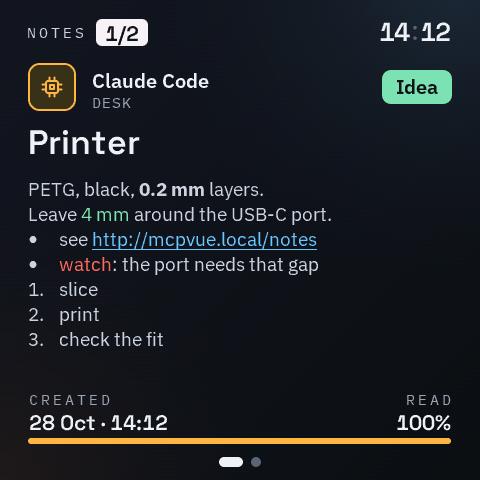
Up to 100 notes in up to 100 categories. You name each category and pick its icon; a note has a title, text with colours, bold, lists, and links, an optional coloured badge, and its author.
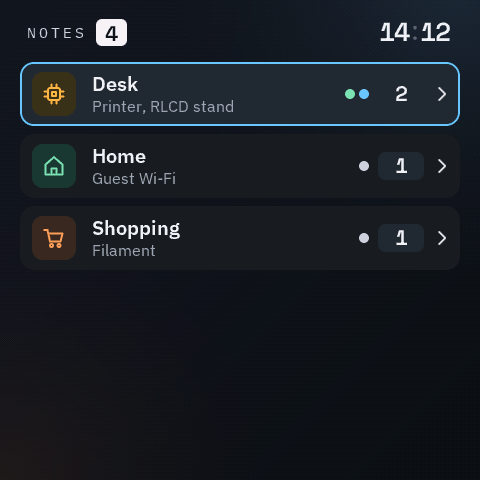
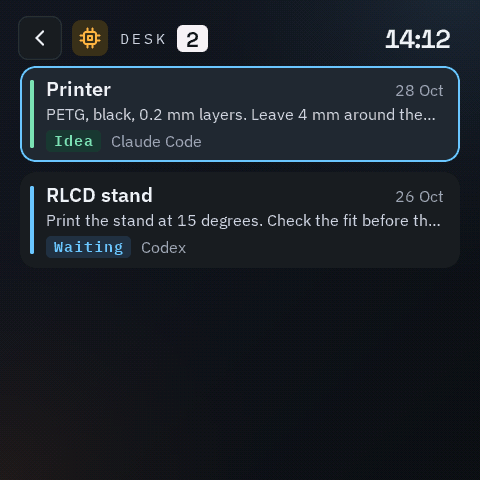
Categories show with their icons, the titles of their notes, how many they hold, and their badges' colours. Open one for its notes, newest first, each with its date, the start of its text, its badge, and its author. A title too long for its place moves slowly back and forth.
A note shows its author and category, its badge, the title, and the text. Long notes scroll with a finger; a tap on the text opens it nearly full screen, and READ at the bottom shows how far you are. Swipe sideways for the next and previous note; hold for Full text or Delete.
Hold over a category for Delete category: an empty one goes at once; one with notes asks you to hold again, then goes with its notes to the archive.
With an SD card ready (the D1), a new note past the 100 goes straight to the card, and what is on the board stays there. A category shows its notes on the board first, then its notes on the card, each with a small card icon; they open, read and delete like the others. Without the card only the notes on the board show; the others come back with the card.
Agents write notes with add_note (and add_category for a new folder); you write them on the web pages (11).
07 · Agent jobs
What your agents
are doing.
Each agent reports its own jobs with report_job: who it is, a title and a short description, a status line and its progress from time to time, and the end, done or failed. While it waits for you it marks the job as a question. The board keeps up to 40 jobs; on the D1 with an SD card, when a new job arrives and all 40 places are taken, the board tries to move the oldest completed job to the card.
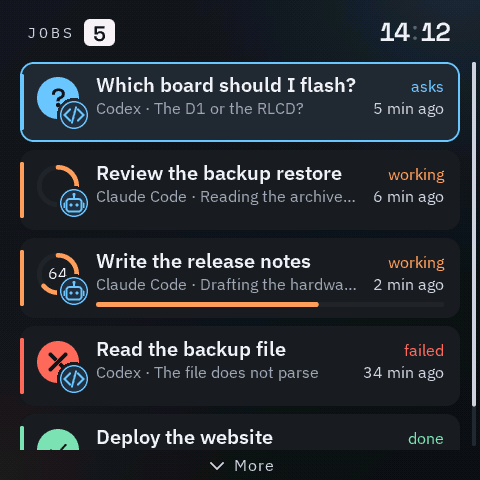
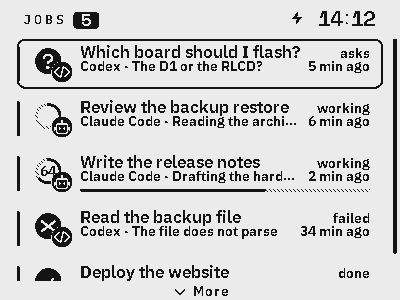
The list shows each job's state at a glance: an orange ring that fills with its progress, with the percent inside when the agent sends one; a blue question mark while the agent waits for you; a green tick when it is done; a red cross when it failed. Beside it the title, the agent and its latest status, a progress bar, and how long ago the agent last reported; a running job with no update for 30 minutes says "quiet" in amber, since its agent may have stopped. Questions come first, then running jobs, then failed and done ones.
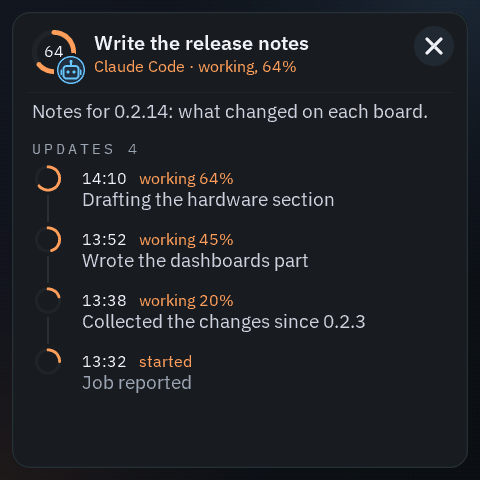
A job, tapped, or opened with the D1's double press or the RLCD's KEY, shows its description and its updates, newest first: the time of each, its state, the status the agent sent, and the progress it had then (the board keeps the last 16). Hold a job for Details, Mark as done, Mark as failed, or Delete, which moves it to the archive; a mark you set shows at the end of its updates.
Keep per agent, on the Jobs web page, chooses how many of its jobs each agent keeps: when an agent's newer jobs push a completed one past that number, it goes to the archive. Running jobs never go by themselves.
08 · Calendar
Every day,
at a glance.
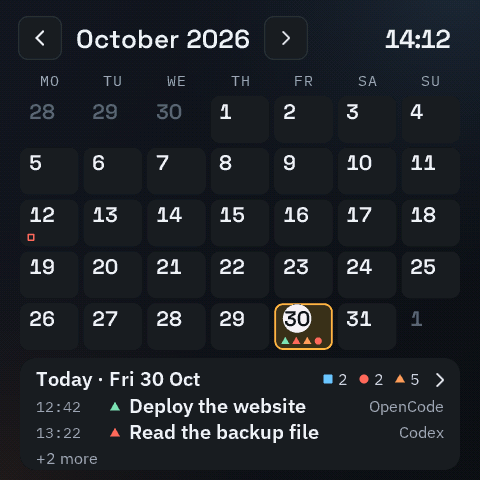
Tasks at their due date and time, messages at the time they arrived (those the board still keeps), and your agents' jobs from their start.
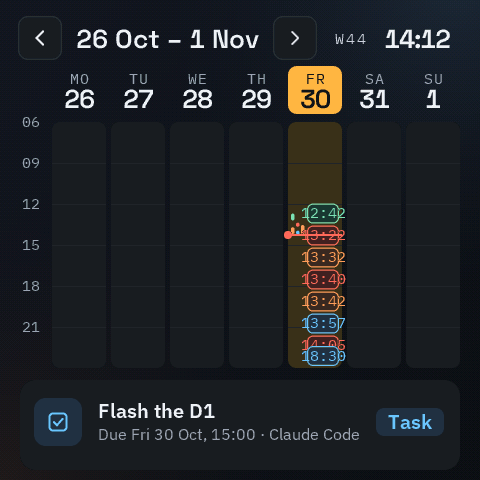
The marks: a task is a square, blue when open, outlined in red when overdue, green when done; a message is a red dot; a job is a triangle in its state's colour (orange working, blue asking you, green done, red failed). On the RLCD they are the same shapes in ink. The day's panel counts each kind and lists its items with their time and who they are from.
Layouts, chosen in Settings: Month (today marked; a tap on a day shows its items below), Week as a list of days, or Week with hours (a column per day from 06:00, a red line at the time now, the next item below; a job shows as a strip for as long as it ran). Both weeks show the week's number. It opens on the current month or week; swipe sideways, or tap the arrows, for the next and previous one; tap the title's month or year to jump.
The day's list: tap the day's panel, or a day in the week list, for every item of that day. Tap one to open it; swipe up from the bottom to go back. With the D1's button: press for the next month or week, double press for the day's list; in the list, press to step, double press to open, hold for Back. On the RLCD, BOOT does what a press does and KEY what a double press does; a hold is the same.
What it shows: messages, tasks, and jobs each on or off in Settings. A task without a due date is not in the calendar, nor is anything moved to the SD card.
09 · Dashboards
Your numbers,
pushed to the desk.
A dashboard is a screen of widgets (numbers, gauges, bars, graphs, states, and lines of text) that an agent or a script designs once and then keeps current. The board never fetches anything: whatever runs on your computer or server pushes the values.
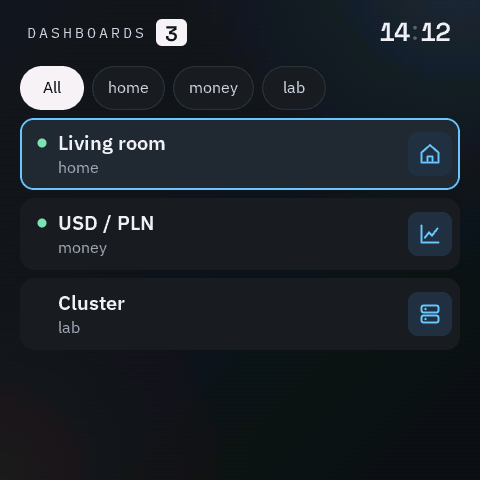
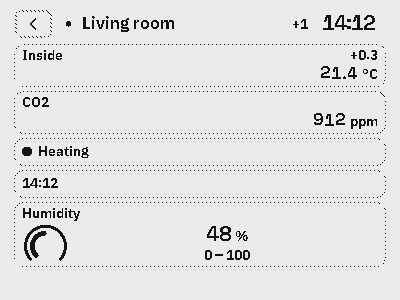
On the board, choose Dashboards in the view menu. Each dashboard is a card with its heartbeat mark on the left, its title, its tags, and its icon on the right. The mark is a dot, green while the beats arrive in time and red when one is late or none has come since the board started; or, with Heartbeat countdown (Settings) or the dashboard's own "countdown": true, a ring that empties until the next beat is due and turns red and full when it is late. On the RLCD the ring is drawn in ink, and a late one blinks once a second instead of turning red. A dashboard without a heartbeat has no mark (its title stays in its place). Up to eight tags show as chips in one row above the list: tap one to see only the dashboards with that tag, tap it again for All. When they do not all fit, the row ends in a small down arrow: tap it for a list of All and every tag, and tap one there to choose it (a tap beside the list closes it as it was). The arrow is lit when the chosen tag is one of those not in the row. On the RLCD the chips show but cannot be chosen. Tap a card to open the dashboard; swipe left and right for the next and previous one; swipe up, or tap the back button, to return to the list. Touch and hold a card, or an open dashboard (on the RLCD hold a button), for its menu. Details opens a window about that dashboard: its icon, title, id and tags; the heartbeat with a large countdown ring, the seconds left inside it (or Late, or No beat yet), the limit ("Every 60 s"), when the last beat came, and how many beats and the shortest and longest gap between them since the board started (or "No heartbeat required"); then the updates since boot (the last one, how many, the shortest and longest gap), the widgets by type, and every source with the value it shows, its age and time to live, fresh or stale, its points and the time they reach back, its range, and whether another dashboard reads it too. The window follows the dashboard while it is open and closes by itself if the dashboard is deleted or moves. Drag, hold, or press Next (the D1's button, the RLCD's BOOT) to scroll it a page; the cross, a tap beside it, or Open (the D1's double press, the RLCD's KEY) closes it. Delete dashboard in the same menu asks once ("Delete again to remove …"), and the second choice within five seconds deletes it. A value older than its time to live turns grey; a widget that has had no value yet shows --. On the RLCD each widget is one row: its title and its reading, in the widget's own form. The board keeps up to 10 dashboards of up to 8 widgets each in /dashboards.json; the values themselves stay in memory and are gone after a restart until they are sent again.
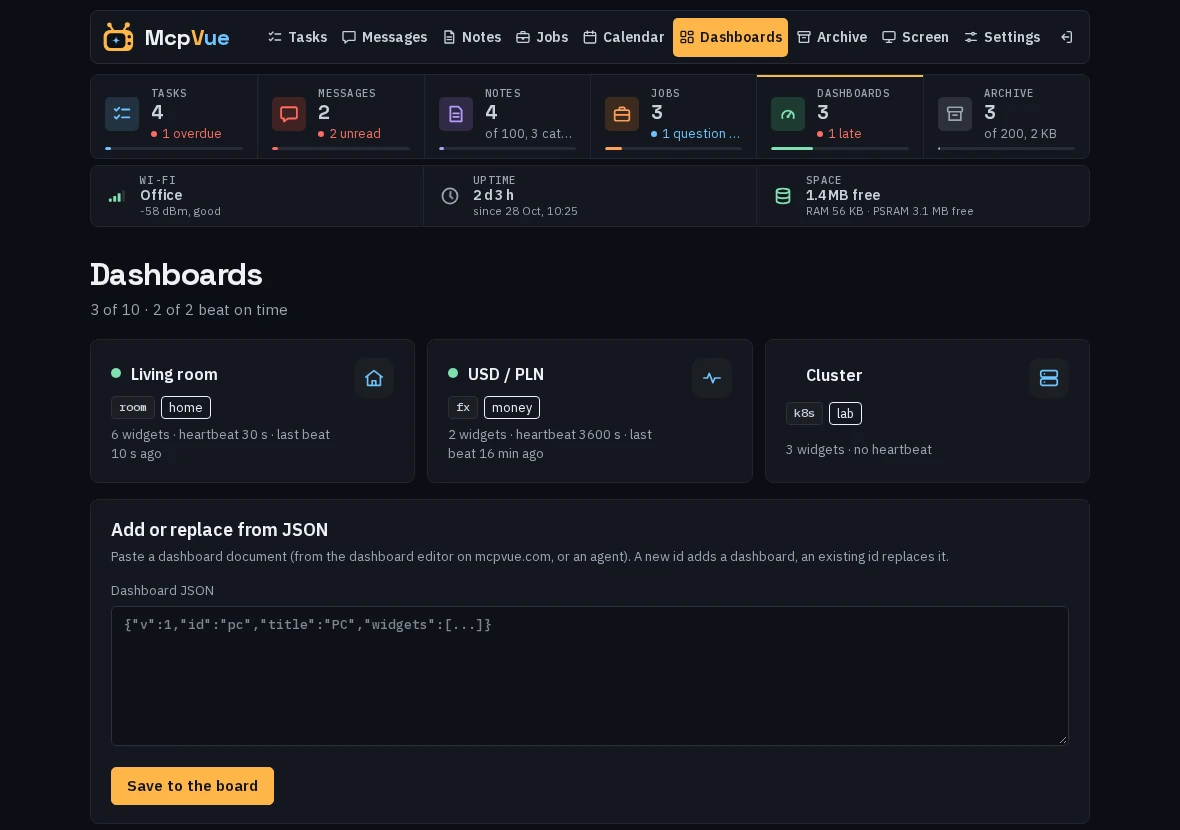
The dashboard editor on this site draws a dashboard on the board's grid as you place and set its widgets, and gives you its JSON to paste under Add or replace from JSON on the board's Dashboards page. Everything it writes the board accepts as it is.
A dashboard is one JSON document:
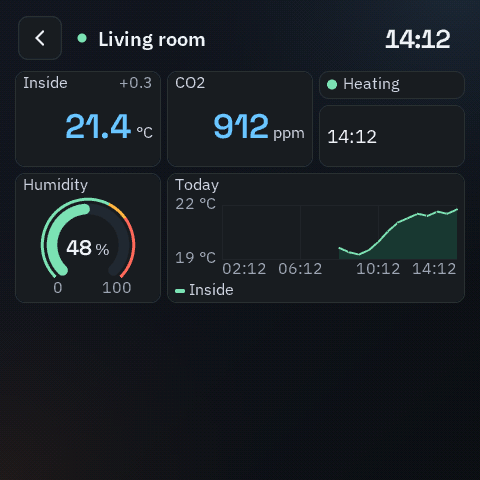
{"v":1,"id":"room","title":"Living room","icon":"home","tags":["house"],"heartbeat":300,
 "widgets":[
  {"id":"temp","type":"metric","cell":[0,0,6,4],"title":"Temperature","unit":"°C","src":"temp",
   "decimals":1,"zones":[[26,"amber"],[29,"red"]]},
  {"id":"hum","type":"metric","cell":[6,0,6,4],"title":"Humidity","unit":"%","src":"hum",
   "style":{"accent":"green"}},
  {"id":"window","type":"status","cell":[0,4,6,1],"title":"Window","src":"window"},
  {"id":"note","type":"text","cell":[0,5,6,2],"title":"Note","src":"room_note"},
  {"id":"time","type":"text","cell":[6,4,6,1],"src":"clock"}]}
A dashboard of daily numbers needs no heartbeat, and one whose feeder runs every 30 seconds can show its countdown:
{"v":1,"id":"daily","title":"Daily numbers","icon":"calendar",
 "widgets":[{"id":"sales","type":"metric","cell":[0,0,6,4],"title":"Sales today","src":"sales"}]}
{"v":1,"id":"host","title":"Host","icon":"server","heartbeat":30,"countdown":true,
"widgets":[{"id":"load","type":"metric","cell":[0,0,6,4],"title":"Load","src":"load","decimals":2}]}v is 1. id: 1 to 16 characters of a-z, 0-9, _ and -, starting with a letter or digit. title: up to 24 bytes. icon: one of assistant, robot, terminal, code, build, test, deploy, monitor, server, calendar, mail, home, person, or a picture of your own (see the web page below). tags: up to 4, each 1 to 12 characters of a-z, 0-9 and -; at most 8 different tags on the whole board, 48 bytes together. heartbeat: seconds, 5 to 3600: the mark turns red (on the RLCD the ring blinks) when no beat arrives for that long; 0, null, or no field means no heartbeat: no mark, never late, for dashboards fed now and then, like daily numbers. Dashboards saved by 0.2.16 or earlier, and backups made by it, keep the 60 seconds they had when the field was left out; the board writes the heartbeat out in full from the next save. countdown: true for the countdown ring, false for the dot; left out, the dashboard follows the board's setting Heartbeat countdown (off at first: the dot). It changes only how the heartbeat looks, never whether there is one. widgets: up to 8. One dashboard is at most 7680 bytes of compact JSON; all of them together at most 30 KB. At most 10 custom icons and 40 different sources on the board.
Every widget has an id (as above), a type, a cell [x, y, w, h] on a 12 × 12 grid (cells may not overlap; the grid fills the screen below the header), an optional title (24 bytes), and a src: the name of the value it shows (1 to 16 characters of a-z, 0-9 and _). Widgets that name the same src show the same value, also on different dashboards, so they must use it the same way (a number, the same count of bars, a state, or text). The board takes up to 40 different sources. Colours are names: ink, soft, blue, amber, red, green.
metric: one number, as large as its cell allows, with its unit (8 bytes), decimals (0 to 3), the colour style.accent (blue when left out), and up to two zones [threshold, colour] in rising order that recolour it from that value up. A delta sent with the value shows small at the top right. At least 3 × 2 cells.
{"id":"cpu","type":"metric","cell":[0,0,4,3],"title":"CPU","unit":"%","src":"cpu",
"decimals":0,"style":{"accent":"blue"},"zones":[[70,"amber"],[90,"red"]]}gauge: a 270° dial filled from the lower left to the value's place between y.min and y.max (0 and 100 when left out), green below the first zone, then in each zone's colour; with zones, a thin ring outside the dial shows their ranges. The value and its unit sit in the middle; with y the two ends of the scale are written under the dial's ends. Any quantity fits: an engine's speed is "y":{"min":0,"max":8000} with the unit rpm, a car's speed "y":{"min":0,"max":240} with km/h. At least 3 × 3.
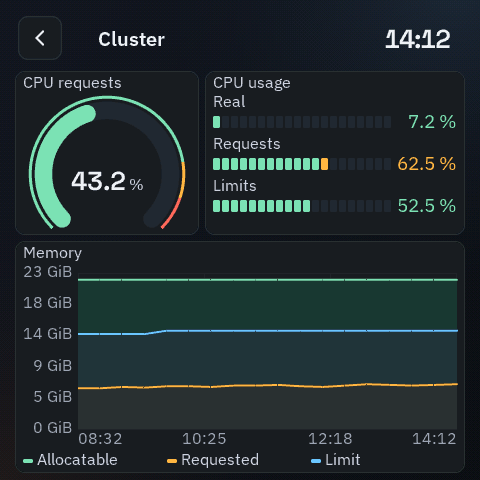
{"id":"cores","type":"gauge","cell":[0,0,5,5],"title":"CPU Cores Requests","src":"cores",
 "y":{"min":0,"max":100},"unit":"%","decimals":1,"zones":[[80,"amber"],[90,"red"]]}
{"id":"rpm","type":"gauge","cell":[0,0,6,6],"title":"Engine","src":"rpm","unit":"rpm",
"y":{"min":0,"max":8000},"zones":[[6000,"amber"],[7000,"red"]]}bars: up to 6 values, one row each: the label above (or beside, in a short cell), a bar of segments lit up to the value's place between y.min (0 when left out) and y.max (required), green, then amber, then red along its length (at 60 % and 85 % of the scale, or at your zones), and the value on the right in the colour it reached. labels (12 bytes each) set how many bars; without labels give "bars": n. Rows that do not fit show as "+N". At least 3 × 3.
{"id":"usage","type":"bars","cell":[0,0,7,5],"title":"Global CPU Usage","src":"usage",
 "y":{"max":100},"unit":"%","decimals":1,"labels":["Real","Requests","Limits"],
"zones":[[60,"amber"],[85,"red"]]}graph: up to three lines over time in one chart. series names each line's src, its label for the legend (12 bytes), and its color (green, amber, blue in order when left out). The left axis has labels at y.ticks (2 to 11) evenly between y.min and y.max, or every y.step from y.min (at most 10 steps; step or ticks, not both; when the range is not a multiple of the step, the top has no line), with the unit and the widget's decimals; without y it follows the values in the window. The bottom axis is time: x.span (60 seconds to five years) shows the last that many seconds up to now (without it, from the oldest point), x.ticks (2 to 6) is how many labels, and x.format how they read: time (14:28), date (29 Oct), month (Oct 26), age (-3 h), or auto (the default: times under two days, dates under 90 days, months beyond). The labels are the board's local time; while its clock is not set they are ages. "fill": true shades the area under each line; "legend": false leaves out the legend. Each source keeps its last 60 points. From 6 × 4 cells with axes and legend; smaller, only the lines. At least 3 × 2.
{"id":"mem","type":"graph","cell":[0,0,12,7],"title":"Memory","unit":"GiB","fill":true,
 "y":{"min":0,"max":23,"ticks":6},
 "series":[{"src":"alloc","label":"Allocatable"},
           {"src":"req","label":"Requested","color":"amber"},
           {"src":"lim","label":"Limit","color":"blue"}]}
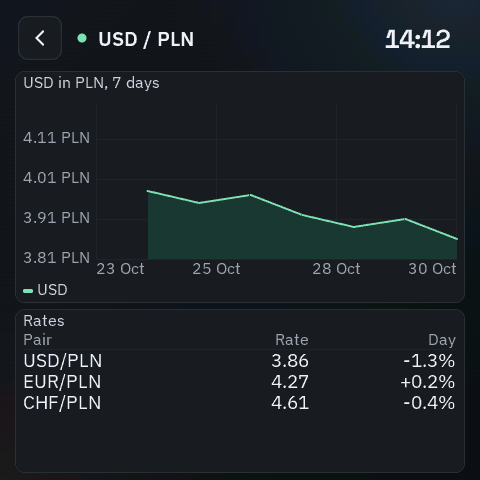
A currency rate over seven days, with a line every 0.10 PLN from 3.80 and dates below:
{"id":"usd","type":"graph","cell":[0,0,12,7],"title":"USD in PLN, 7 days","unit":"PLN","decimals":2,
 "fill":true,"y":{"min":3.8,"max":4.2,"step":0.1},"x":{"span":604800,"format":"date"},
"series":[{"src":"usdpln","label":"USD"}]}sparkline: one line of the last points of one number, without axes; y and x.span as for a graph. At least 3 × 2.
{"id":"trend","type":"sparkline","cell":[0,0,4,2],"title":"CPU, last minutes","src":"cpu"}status: a dot and a word: on green, off grey, alert red. In one row the title is the word beside the dot. At least 3 × 1.
{"id":"door","type":"status","cell":[0,0,4,1],"title":"Front door","src":"door"}text: one line of up to 64 bytes, cut with "…" when longer than its cell. With "src": "clock" it shows the board's own clock. At least 3 × 1.
{"id":"last","type":"text","cell":[0,0,12,2],"title":"Last commit","src":"commit"}table: up to 8 rows of up to 4 short texts. columns are the header labels (12 bytes each; "" for no header), and their number is the number of columns; rows (1 to 8, 4 when left out) is how many rows a value may have; align has an l or r per column (numbers read best on the right). Rows that do not fit the cell end with "+N more". Two tables on one source need the same columns and rows. At least 4 × 3.
{"id":"rates","type":"table","cell":[0,7,12,5],"title":"Rates","src":"rates",
"columns":["Pair","Rate","Day"],"rows":6,"align":"lrr"}primitives: a picture of your own, up to 8 shapes in the cell's own pixels (its top left is 0, 0; whatever lies outside is cut off): rect [x, y, w, h] with r (corner) and fill, line [x0, y0, x1, y1] with w (1 to 12), arc [cx, cy, r] from from to to degrees clockwise from the top with w, text (16 bytes) at [x, y] with size small, text, figure or subhead and align left, center or right; each with a color. At least 1 × 1.
{"id":"logo","type":"primitives","cell":[0,0,3,3],"draw":[
  {"rect":[4,4,98,88],"r":12,"fill":false,"color":"soft"},
  {"arc":[53,48,30],"from":-135,"to":135,"w":6,"color":"green"},
  {"line":[53,48,74,30],"w":3,"color":"ink"},
  {"text":"OK","at":[53,84],"size":"small","align":"center","color":"green"}]}
Values and beats are sent as a list; each entry is either a value for a source or a beat for a dashboard:
{"values":[
  {"src":"temp","v":22.6,"delta":0.4,"ttl":300},
  {"src":"hum","v":47},
  {"src":"window","v":"off"},
  {"src":"room_note","v":"Plants watered on Monday","ttl":3600},
  {"id":"room","beat":true}]}
v is a number for metric, gauge, sparkline and graph, an array of exactly as many numbers as the bars, rows of exactly as many strings as the columns for a table ([["EUR","4.28"],["USD","3.95"]]; [] clears it), on, off or alert for a status, or a string for text. ttl (5 to 3600 seconds, 60 when left out): after that long without a new value the widget turns grey. delta: the change a metric shows beside the number. history: up to 60 numbers, oldest first, that replace a source's points at once (for a graph after a restart); step (1 second to a year, 60 when left out) is the time between them; the last one is now, or at end, a Unix time in seconds (up to five years back; it needs the board's clock); a v in the same entry is added after them, at now. A source keeps 60 points, so send what the graph should show: seven daily closes for a week, twelve monthly averages for a year. For months, use the mean month, "step": 2629746, and date the newest point on the 15th: every point then stays in its own calendar month for up to 12 months (a mean month is not a calendar month, so points dated on the 1st drift into the month before). For exact dates, post each value when it happens instead. A beat {"id":"room","beat":true} keeps that dashboard's mark green for its heartbeat and fills its ring again. A post takes at most 64 entries (more, and nothing is applied). Each entry applies on its own: the answer counts the accepted ones and lists every rejected one with its index and the reason, for example {"ok":true,"accepted":4,"rejected":[{"i":2,"error":"v: on, off or alert"}]}. Values are never written to flash.
{"values":[{"src":"alloc","step":1200,"history":[22,22,22,22,22,22],"v":22},
            {"src":"req","step":1200,"history":[6,6.2,6.1,6.3,6.3,6.4],"v":6.5}]}
{"values":[{"src":"usdpln","step":86400,"ttl":3600,"history":[3.98,3.95,3.97,3.92,3.89,3.91,3.86]},
{"src":"rates","ttl":3600,"v":[["USD/PLN","3.86","-1.3%"],["EUR/PLN","4.27","+0.2%"]]}]}With MCP, agents use eight tools: dashboard_help (this whole contract as text, with worked examples for a currency, a car, a server and a home: an agent reads it before building one), display_info, validate_dashboard, put_dashboard (one document, new or replacing the one with its id; its schema states every field and range), render_dashboard, delete_dashboard (an id), push_dashboard_values (the list above), and list_dashboards (all of them with their heartbeat, "beat" ok, late, or none, and the age of the last beat; with an id, that one's whole document, and with "values": true its sources' current values too). A put or delete is answered at once with a change id; it shows on the board once saved, and list_dashboards tells its state: pending, saved, failed, or cancelled.
An agent drawing a dashboard works in four steps. display_info first: the board, its screen and whether it is black and white, the grid (12 × 12 cells of 38 × 34 pixels from 12, 68 on the D1) or the RLCD's list of rows, the size of a widget's box for every cell count, where a drawing's coordinates start (the box's top left, text at its baseline, cut off at the box's edge), the colours, the defaults (no heartbeat, the board's countdown setting), every limit, and which preview scales the board offers; beside them the firmware version and any update on offer, how many notes and categories are used, and on the D1 the SD card. Then validate_dashboard with the document: nothing is stored; the answer says whether the board would take it, gives the first error with the allowed range (for example widgets[0].cell: outside the 12 x 12 grid: x 0 to 11, w 1 to 12 - x (here at most 2)), warns about shapes outside their box, text likely too wide, or widgets that do not fit the RLCD's list, and checks it against the board's other dashboards (unless memory is short or a change is pending; the answer says so). Then put_dashboard. Then render_dashboard with the id (or a document not stored yet) to see the result: a PNG of the dashboard as the board draws it, 240 × 240 on the D1 (half its size) and 400 × 300 in black and white on the RLCD, or with "format": "raster" a 24 × 24 grid of . and # that shows which parts of the screen are drawn on. Fix what looks wrong and put it again. A render takes the board under a second and, for a moment, about 175 KB of memory on the D1 (less on the RLCD); display_info says whether there is enough now. When there is not, the answer says what it needs and what there is.
{"jsonrpc":"2.0","id":3,"method":"tools/call","params":{"name":"display_info","arguments":{}}}{"jsonrpc":"2.0","id":4,"method":"tools/call","params":{"name":"validate_dashboard",
"arguments":{"dashboard":{"v":1,"id":"pc","title":"PC","widgets":[
{"id":"cpu","type":"metric","cell":[10,0,4,3],"src":"cpu"}]}}}}{"jsonrpc":"2.0","id":5,"method":"tools/call","params":{"name":"render_dashboard","arguments":{"id":"pc"}}}On your network the MCP address needs no key:
{"jsonrpc":"2.0","id":1,"method":"tools/call","params":{"name":"put_dashboard",
 "arguments":{"dashboard":{"v":1,"id":"pc","title":"PC","icon":"monitor","heartbeat":30,
  "widgets":[{"id":"cpu","type":"metric","cell":[0,0,4,3],"title":"CPU","unit":"%","src":"cpu"}]}}}}
{"jsonrpc":"2.0","id":2,"method":"tools/call","params":{"name":"push_dashboard_values",
"arguments":{"values":[{"src":"cpu","v":42},{"id":"pc","beat":true}]}}}From a script on your network, the same through MCP with curl:
curl -s -H 'Content-Type: application/json' \
  -d '{"jsonrpc":"2.0","id":1,"method":"tools/call","params":{"name":"push_dashboard_values","arguments":{"values":[{"src":"cpu","v":42},{"id":"pc","beat":true}]}}}' \
  http://mcpvue.local/mcp
or straight to POST /api/dashboards, which takes {"put": {…}}, {"delete": "id"}, or {"values": […]} and needs the device MCP key (Settings, Remote access) as a bearer token, also through the remote address. A wrong key is refused, never taken for a signed-in browser. GET /api/dashboards lists them; ?id=room returns one; &values=1 adds its current values.
curl -s -H "Authorization: Bearer $MCPVUE_KEY" \
  -d '{"values":[{"src":"cpu","v":42},{"id":"pc","beat":true}]}' \
  http://mcpvue.local/api/dashboards
# Every minute: the CPU load and a beat (crontab -e)
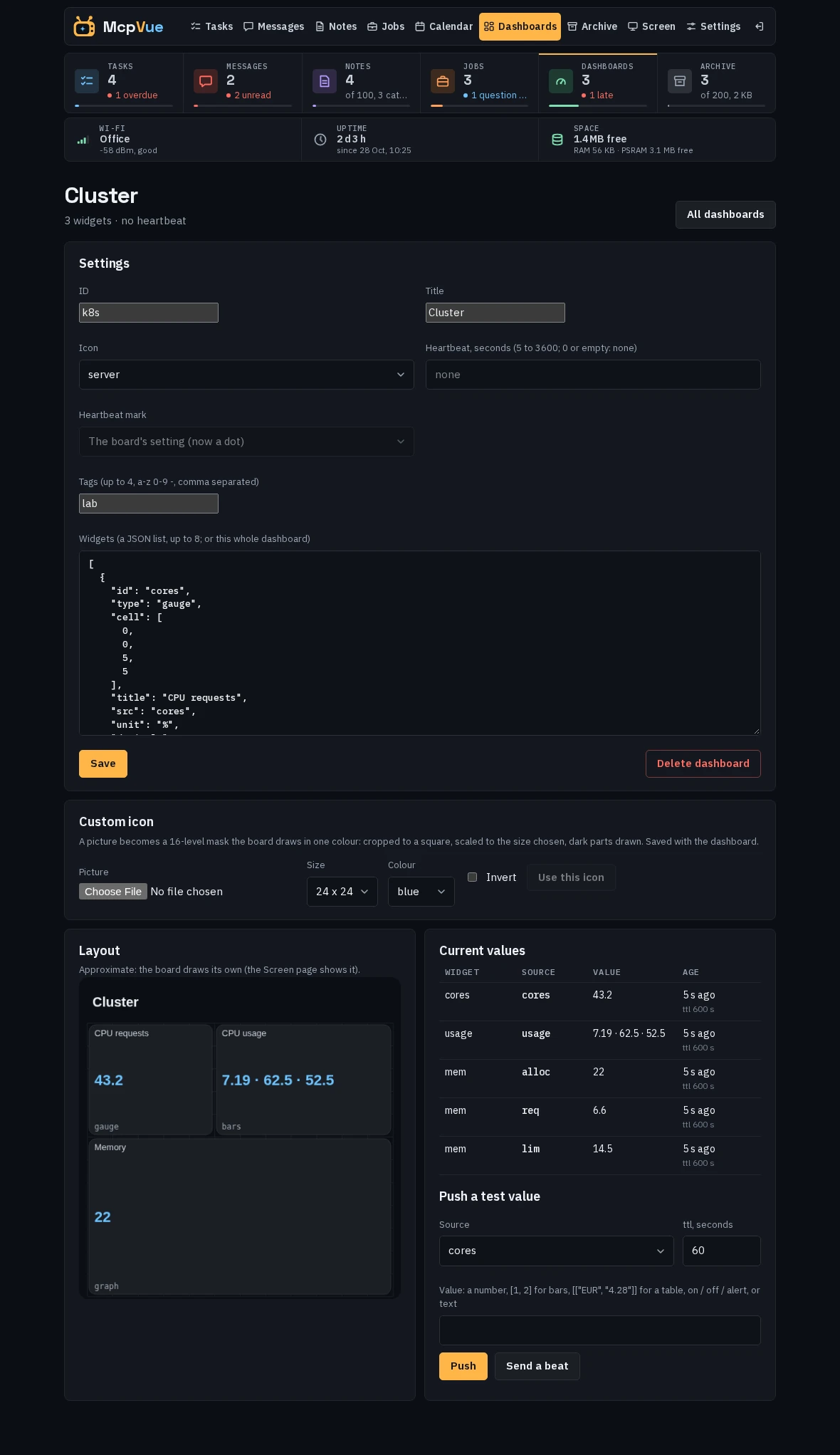
* * * * * curl -s -H "Authorization: Bearer $MCPVUE_KEY" -d "{\"values\":[{\"src\":\"cpu\",\"v\":$(cut -d' ' -f1 /proc/loadavg)},{\"id\":\"pc\",\"beat\":true}]}" http://mcpvue.local/api/dashboardsOn the web pages, Dashboards lists them with their heartbeat mark (as on the board), id, icon, tags, heartbeat (or "no heartbeat"), and when the last beat came. Click one to change its title, icon, tags, heartbeat (empty or 0 for none), its mark (the board's setting, a dot, or a countdown ring), and widgets (the widgets as JSON; the board's reason shows if it refuses a change), to delete it, to see each source's current value and its age, to push a test value or a beat, and to see the layout drawn on the board's grid (approximately; the Screen page shows the board itself). Custom icon turns a picture into the board's icon format: it is cropped to a square, scaled to 8 to 32 pixels, and drawn in 16 levels of one colour you choose; Invert swaps light and dark.
10 · Status and archive
How full it is.
What you deleted.
- Status
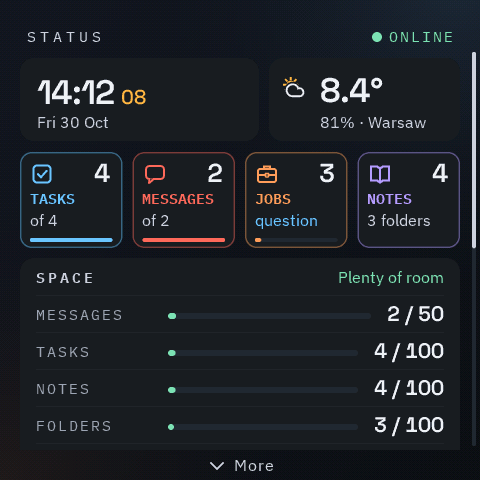
- The time, the weather, a row of four tiles (open tasks, unread messages, agent jobs still running with "question" in blue while an agent waits for you, and notes with their folders), then SPACE: how many of the 50 messages, 100 tasks, 100 notes, 100 folders (the categories), 10 dashboards, and 200 archived things are used and the flash used for them, each with a meter that turns amber at 80 % and red when full (the archive's never does, because its oldest go); then the free memory, and on the D1 the SD card, with a meter while a card is ready. While an SD card is ready, the messages, tasks, and notes rows do not warn when full either; messages and tasks then say how many of theirs are on the card, and the notes row counts the notes on the card in its number. The line at its top names the fullest list that still warns, or says Plenty of room. Drag up, or press a button, for the network details below them, which end with the firmware version, and the newer one when mcpvue.com offers it. When a list is full and something is refused, or the oldest read message or done task makes room, a note shows at the bottom of the screen for a few seconds, also over the clock.
- Archive
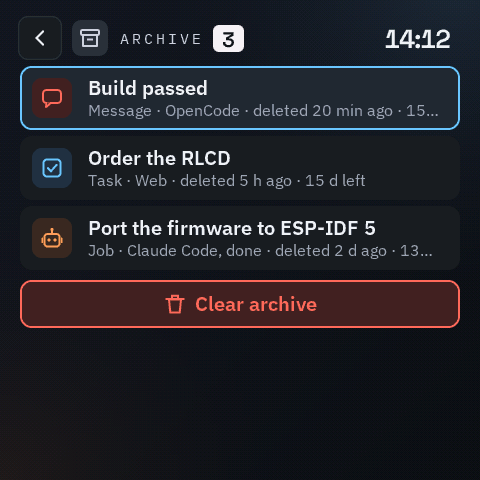
- Whatever is deleted (a message, a task, a note, an empty category, a job, by you, on the web pages, or by an agent, and the read message or done task that made room in a full list) goes to the archive, and so does a timed message once it has run out and its expired time is over. Each thing stays the 5, 15, or 30 days set when it was deleted, then goes for good; the archive keeps up to 200. Open it from Settings (the Archive row); tap a thing to read it, hold it for Restore or Delete forever. With archived things on the SD card, they follow in the same list, and a Show row at the top chooses all, flash (the board's own), or the SD card. Clear archive at the end of the list deletes those on the board (choose it twice). A restored message comes back first in the list, a task at its end, a note in its category, which comes back too if it was deleted.
11 · Web pages
The display,
in your browser.
Open http://mcpvue.local/ or the board's IP address in any browser on your network.
The pages look like the board: its colors, with amber for the page you are on, Messages in red and Tasks in blue, and its fonts. They are dark, or light when your computer or phone is set to light; Theme in Settings can fix either one for this browser.
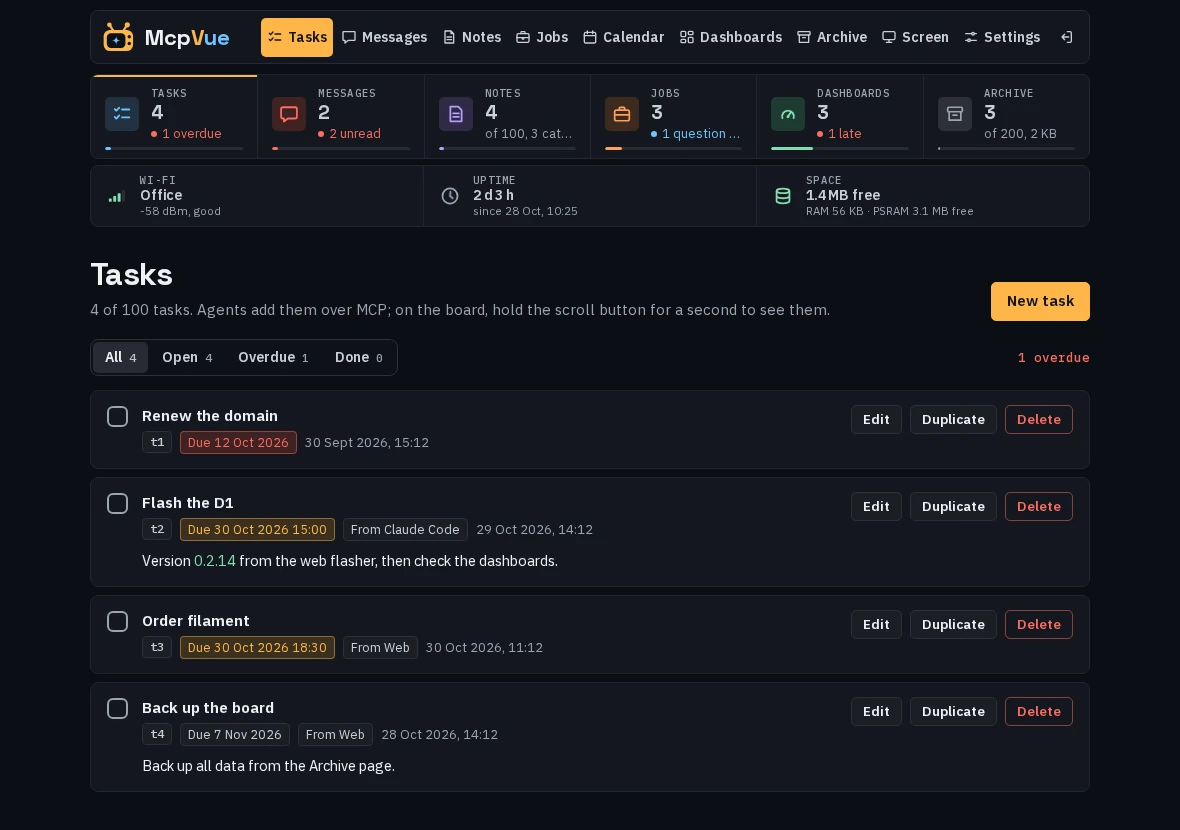
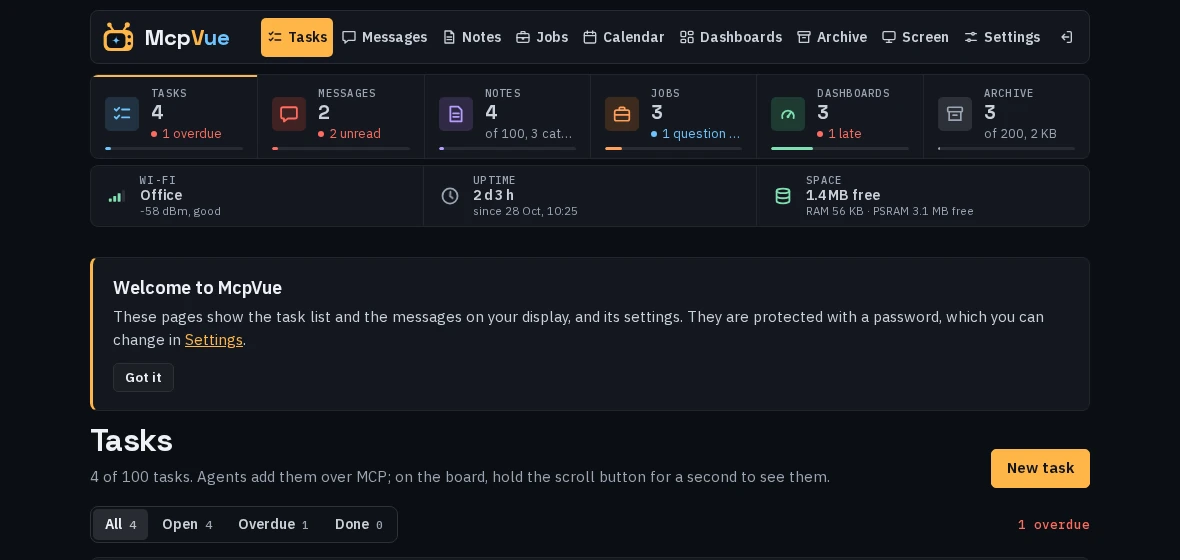
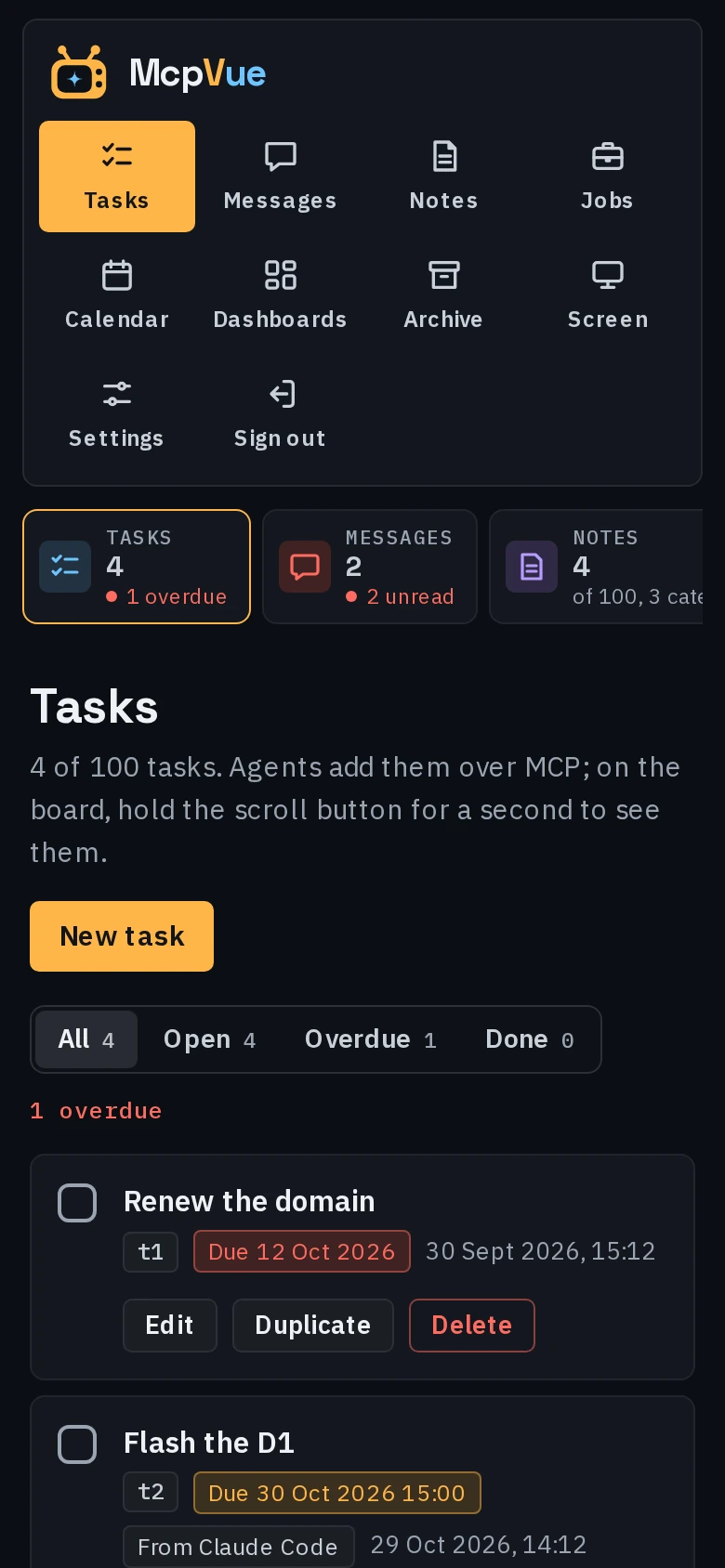
A status bar under the navigation shows, in a row of tiles, how many tasks, messages, notes, agent jobs (those still running), dashboards (with the late ones in red), and archived things the board holds, and what needs doing: overdue tasks, unread messages, and archived things that go today, in red, and an agent's question for you, in blue. Each tile opens its page; the page you are on has an amber edge, and a meter under each turns amber at 80 % and red when full; the archive's never does, and while an SD card is ready neither do those of messages, tasks, notes, and jobs, which then show how many are on the card when some are. Below them, smaller chips show the battery (with a lightning bolt on USB power; boards that cannot measure their battery leave it out), the Wi-Fi network with its signal, how long the board has been running, remote access while it is on, the space left for messages, tasks, and notes, and on the D1 the SD card; click a chip for its details, such as the board's IP address and the MCP address to copy. It refreshes every 5 seconds; when the board stops answering, the Uptime chip says when the last reading came. On a wide screen the counts move into the top bar while you scroll (the pages become icons there to make room); on a phone the tiles are one strip to scroll sideways. Each page in the navigation has a small icon; on a phone or a narrow window the pages show as tabs below the logo, the icon over the name.
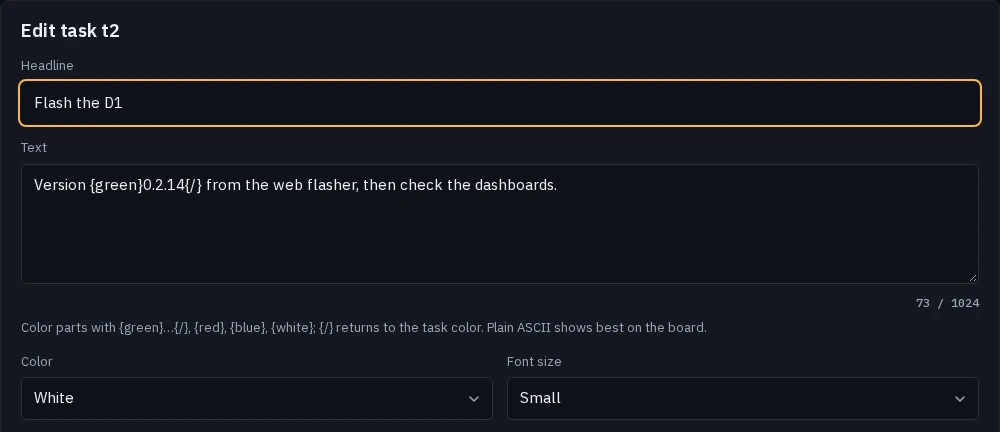
Tasks lists every task with its text in color, its due date (amber today, red when overdue), and when it was made. Show all of them, the open ones, the overdue ones, or the done ones; tick a task's box to mark it done, or untick it to open it again. Add a task, edit one, duplicate one (the copy opens for editing right below the original), or delete one. A due date is a tick with a date and an optional time. Recurring beside it makes the task repeat from that date (choose every N hours, every N days, weekly, monthly, or yearly, and optionally the day it Ends; empty, it repeats forever), and Reminder chooses the standard information or a popup with a sound on the board, at the time or up to a day before; a reminder needs a time.
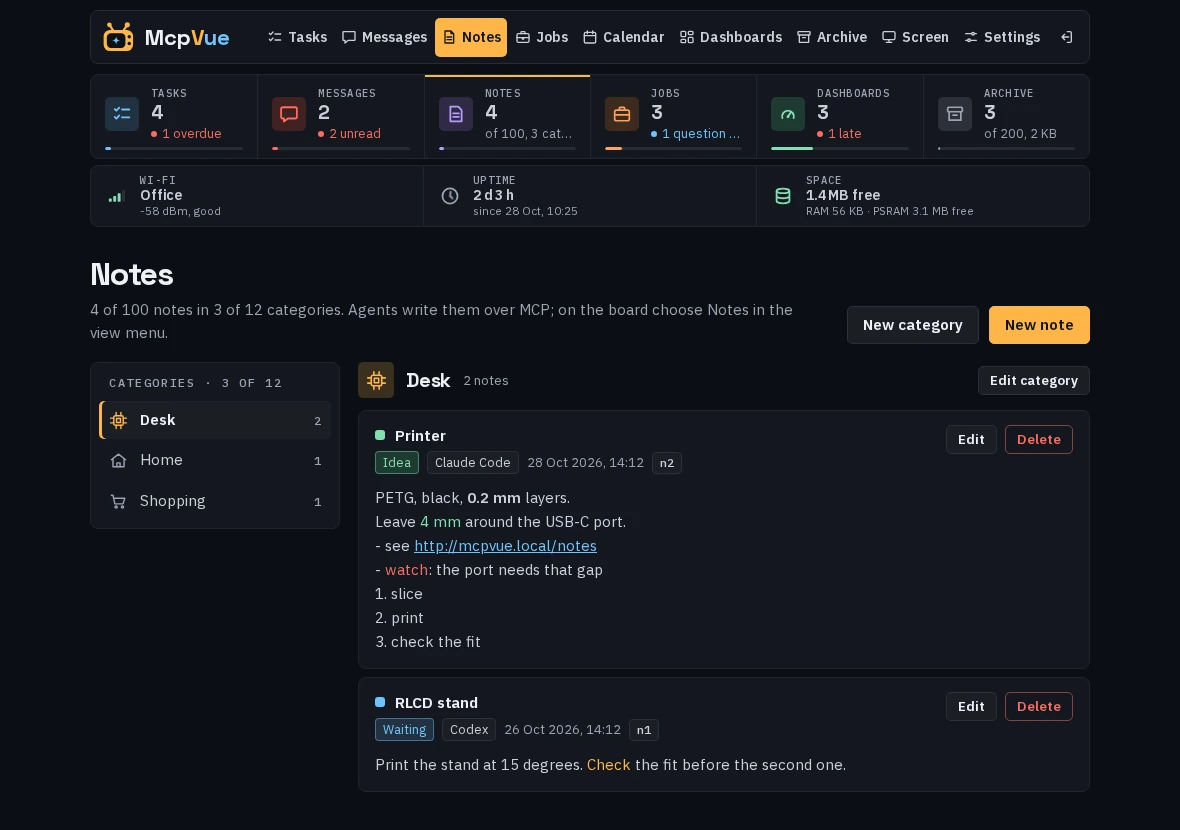
Notes keeps up to 100 longer texts in up to 100 categories, like folders. The categories are listed on the left (above the notes on a phone); click one to open it. Make a category with a name and an icon, then write notes into it: a title, an optional badge in one of six colors (such as Active or Idea), the text, and the author. Text can be colored with {green}…{/}, {amber}, {red}, made bold with **…**, and links show as links; the form shows a preview. A note with a badge is edged in the badge's color. The page says how many notes and categories of the 100 each are used, and how many notes are on the SD card; a 101st category is refused. Edit or delete notes and categories; deleting a category deletes its notes. Agents write notes too. With an SD card ready, a note past the 100 goes to the card and shows in its category after the ones on the board, with a card icon; it edits and deletes in place. To card and To memory on a note move it between the two; Move all to card moves all of them, and Move all to flash brings back all of the card's when they fit, or says how many are on the card and how many places are free. All, at the top of the categories, shows every note. Below the categories, Badges and Colours list the badges and the badge colours of the notes shown, with their counts; choosing one, or one of each, narrows what is shown, on the board and on the card. Agents filter with list_notes' badge.
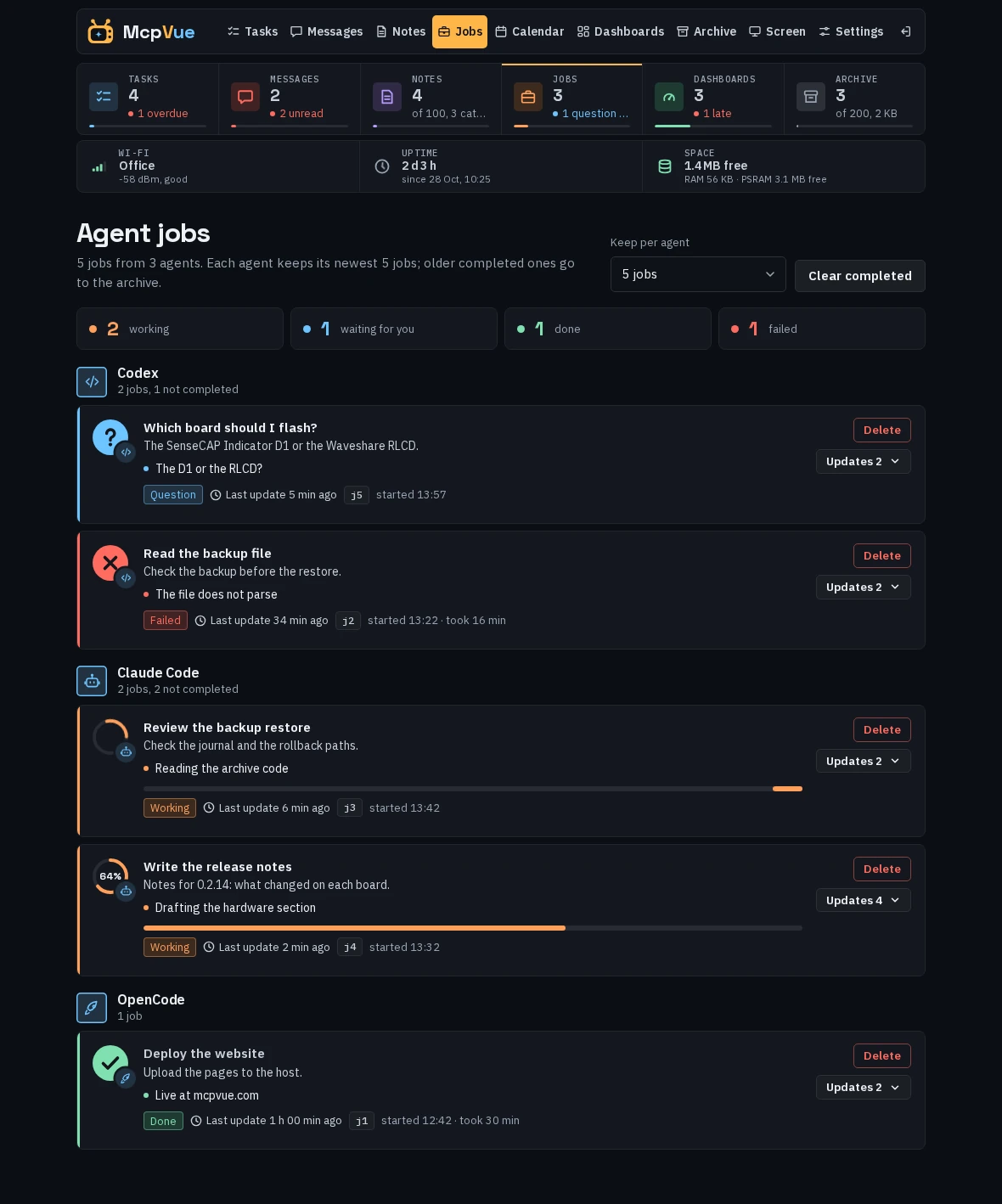
Jobs shows what your agents are working on. Each agent reports its jobs itself with the MCP tool report_job, as the board's instructions ask: it says who it is, gives the job a title and a short description, updates a status line and its estimate of progress from time to time, and ends the job done (a green tick) or failed; while it waits for you it marks the job as a question (blue). The jobs are grouped by agent, the ones still running first, each with a ring that fills with its progress, its status line, when it started, and when its agent last reported; a running job without an update for 30 minutes says "No update for …" in amber, since its agent may have stopped. Click a job (or its Updates button) for its history: every update the board keeps (the last 16), newest first, with its time, its state, the status sent, and the progress mark it had then. Keep per agent chooses how many of its jobs each agent keeps on the board (none, 1, 2, 3, or 5; 1 at first): when an agent's newer jobs push a completed one past that number it goes to the archive, so with 1 a finished job stays until the same agent starts its next one, and with none a job goes to the archive as soon as it is done. Running jobs never go by themselves. Delete removes one job, Clear completed all done and failed ones, both to the archive. An agent can delete a job too, but only with a reason. The board keeps up to 40 jobs.
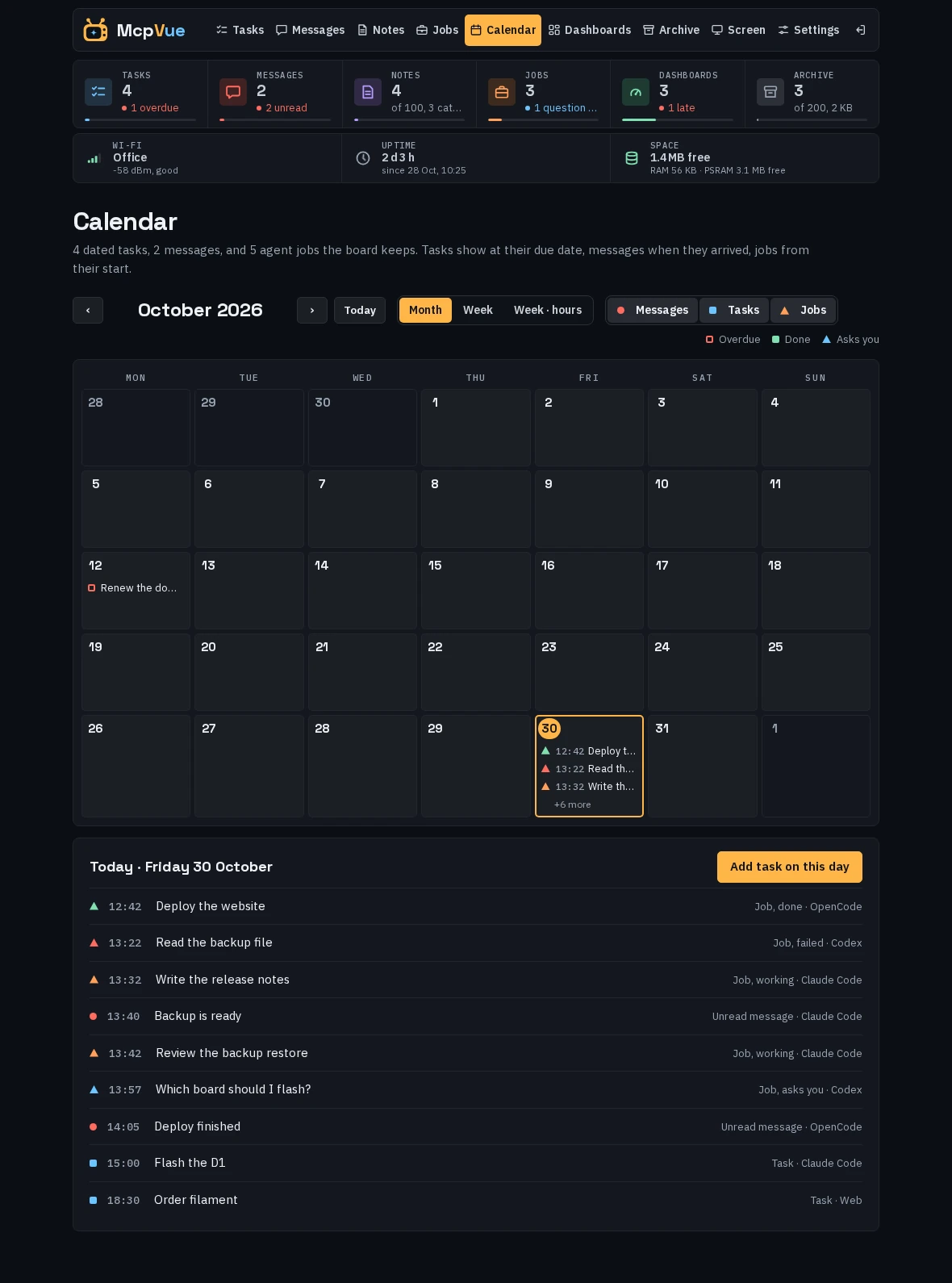
Calendar shows the same as the board's calendar, jobs included (in the week with hours as bars for as long as they ran); the Messages, Tasks, and Jobs buttons above it show or hide each kind (remembered in the browser): a month, a week as a list, or a week with hours, with Previous, Next, and Today (or the arrow keys). Click a day for its messages and tasks and to add a task due that day; click an item for its details. The layout you pick here is remembered in the browser; the board's own is in Settings.
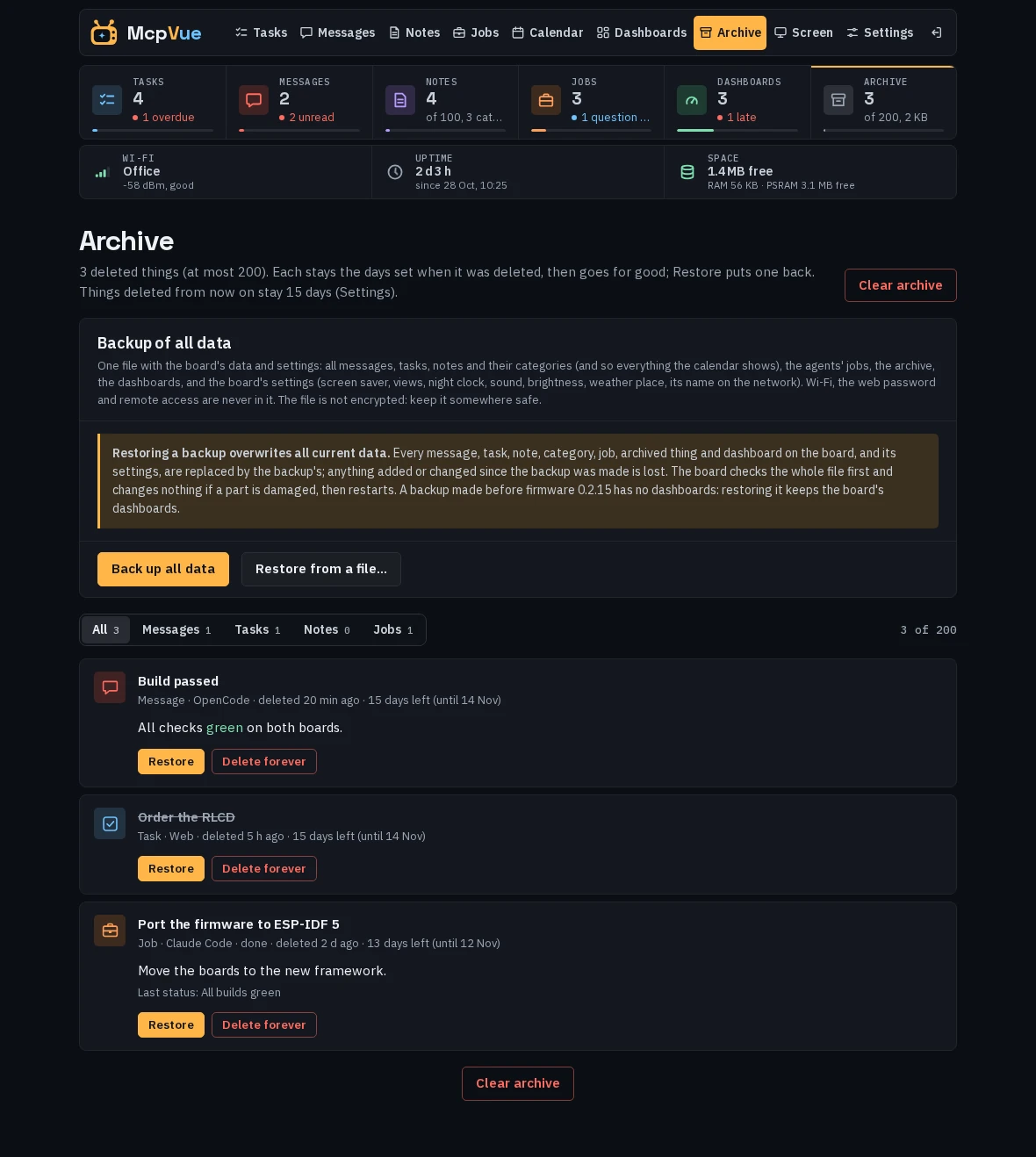
Archive lists what was deleted in the last days, newest first, with filters for messages, tasks, notes, and jobs: each with who it was from, when it was deleted, and how long it stays; things on the SD card show in the same list with a card icon, and a filter shows all, the card, or the board only. Click its text to read all of it; Restore puts it back, Delete forever removes it, and Clear archive (at the top and at the bottom) deletes those on the board; a thing on the card goes with Delete forever. If the board ever cannot read its archive file, this page and the board's Archive screen say "not loaded": until it loads, nothing can be deleted, restored, or backed up (a delete is refused with that reason, on the board, on these pages, and for agents), and the board tries again every 30 seconds. A file it finds damaged is never overwritten: it is kept aside, and An archive file kept aside appears here with Download and Delete from the board.
Backup of all data, at the top of the Archive page: Back up all data saves one file (mcpvue-backup-<date>.json) to your computer with all messages, tasks, notes and their categories (and so everything the calendar shows), the agents' jobs, the archive, the dashboards, and the board's settings. It is not encrypted, so keep it somewhere safe; Wi-Fi, the web password and remote access are never in it. The dashboards are saved as the board last stored them; a change still being saved is not in it. If the board could not read its dashboards file when it started, the backup says so and stops rather than leave them out: put a dashboard again (that replaces the file) and back up then. Restore from a file… overwrites the data it holds: every message, task, note, category, job, archived thing and dashboard, and the settings, are replaced by the backup's, and anything added or changed since the backup is lost. A backup made before firmware 0.2.15 has no dashboards: restoring it keeps the board's. It asks once, then the board checks the whole file (if any part is damaged nothing changes), stages it and restarts after saving it successfully; the page reloads when it is back. A failed restore keeps the previous data and settings; if power is lost before the restore finishes, the board recovers the previous state before starting normally. Keep the board powered while it restores. Before a restore the board checks that it has room; if not, it says how much is needed and how much is free, and nothing changes. Only one backup, restore, or copy to the card runs at a time.
Copies to the SD card, in the same section (the D1, with a card): on a schedule, every X hours, or every X days at a chosen time, the board saves that same file to /Files/backups on the card, and you can download it on the Files page and restore it as any backup. It keeps the last 10, or the number you set, removing only its own, and Back up to card now makes one at once. A time missed with the board off, no card, or no clock isn't made up: it waits for the next time. A copy that fails shows a small message on the board, once for each kind of trouble, and the reason here. The file's name has its time in UTC. Like any backup it isn't encrypted, so anyone with the card can read it, and what is only on the card isn't in it.
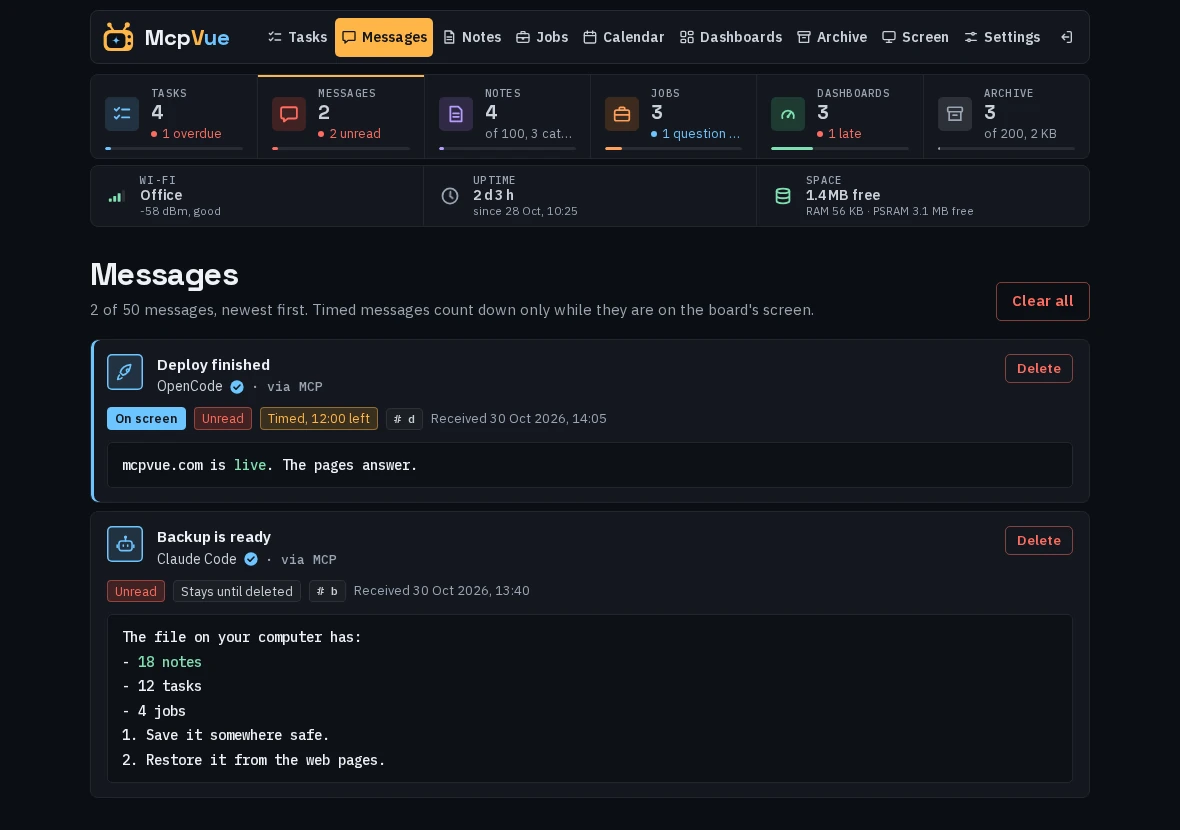
Messages lists the queue, newest first: each with its sender's icon in the sender's color, as on the board, the one on the screen, unread ones, the time left of timed messages, ids, and arrival times. Delete one message or all of them.
Dashboards lists the board's dashboards and edits them (09).
Files keeps your files on the board's microSD card (the SenseCAP Indicator D1, with McpVue 0.2.30 or later on both of its chips; flash it once with the web flasher). When a card goes in, the board asks once: Use keeps everything on it and adds McpVue's folders, Format erases it first (after a second question), Not now leaves it alone until it is taken out; the Files page offers the same choice. Then drop files or whole folders on the page, or choose them with Upload: each goes in parts, with its progress, and is checked byte for byte (SHA-256) before it is saved, so a cut connection or a restart never leaves half a file. A name that is already there asks Replace, Keep both or Skip. Click a folder to open it, a file to download it as it was uploaded; make folders, rename and delete (a folder with everything in it, after a question). Files are stored in /Files on the card, so a computer reads them as usual; files of 4 GB or more need a card formatted as exFAT (cards over 32 GB are). The board shows an SD card icon beside the clock while the card is ready, filled as it fills, and an SD CARD row in Status with the free space; the status bar at the top of these pages has an SD card chip too. Format card on this page and Format SD card in Settings erase the card after a question; on the board it is in Settings (Format SD card, chosen twice within 5 seconds). A transfer shows its stage, percent, speed and time left. View opens a file that holds text, whatever its name, right on the page.
Older items on the SD card. A list fills to its limit first. With a card ready, a full list then tries to move its oldest item to the card to take a new one, and from then on keeps one place free so the next add doesn't wait, so a list can hold far more than its limit: oldest messages by arrival, tasks by when they were created (never an open task still due or with a reminder to come), completed jobs, and archived things by when they were deleted. Notes go the other way: the new one goes to the card and what is on the board stays (see Notes). Working jobs stay, and so does the task or message on the screen while anything else can go. A list without a card, or with nothing that can move, behaves as before. The Messages, Tasks and Jobs pages end with On the SD card, and the Notes and Archive pages show theirs in their own lists: read them there, then Move back (a full list moves its own oldest first; an item whose id was taken comes back with a new one) or Delete for good. Each shows its details too (due date, sender, done, folder) without moving back; on the board, tap one. During a burst of new items the board moves the oldest in the background, so its screen keeps drawing. On the board, the end of a list shows how many are older (in Details mode, the page after the last item), and Settings' SD card row lists all of them with the same two choices. Agents read them with a list tool's source: "card" and bring one back with move_from_card; list_notes and get_note show both places and say where each note lives. A power cut or the card taken out in the middle of a move loses nothing. A backup holds what is in the board's own storage, not the card; the card is its own copy, and a computer can read its records (/McpVue/data).
Screen shows the board's screen as it is right now and controls it from the browser: Messages or the task list, previous and next (or the left and right arrow keys), open or close a task, delete the selected item, clear all messages, and wake the board from its screen saver. Each control works like the board's own, with the same sounds and animations on the board. The picture follows a few times a second and pauses during an animation on the board.
Settings is the next section. On your first visit from a browser, a welcome note explains the pages and links to the password setting.
12 · Settings
Set it up
your way.
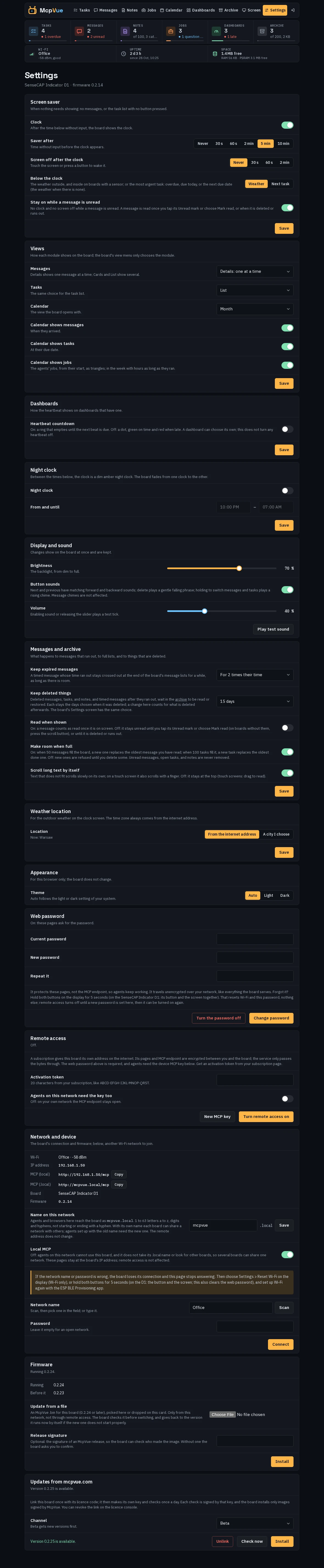
At http://mcpvue.local/settings. Each part saves on its own and applies at once.
- Screen saver
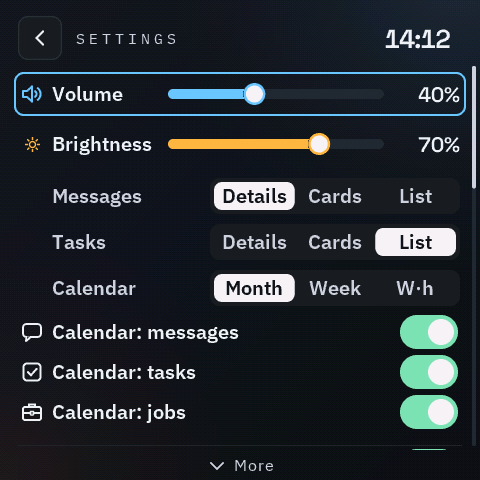
- Screen off with a short animation now and then, or a clock that stays. Choose after how many seconds without anything to show it starts (10 to 3600, or 0 to turn it off) and how often the animation plays. On the RLCD and the Indicator choose Saver after: Off, or a time; what shows below the clock: the weather, or your next task; and Stay on while a message is unread (on at first): no clock and no screen off until every message is read. The same choices are in the board's own Settings screen.
- Views
- On the RLCD and the Indicator: how Messages and Tasks show, one at a time (Details), as cards, or as a list. The board's Settings screen has the same choice; its view menu only picks the module.
- Night clock
- On the RLCD and the Indicator: off at first. Turn it on and choose when the night starts and ends (22:00 to 07:00 at first); the hours may run past midnight. Between them the clock is a dim night clock.
- Dashboards
- Heartbeat countdown: off at first, every dashboard with a heartbeat shows a dot; on, a ring that empties until the next beat is due. A dashboard's own
countdownoverrides it for that dashboard. It changes only the look; no heartbeat is turned off. The board's Settings screen has the same choice. - Messages and archive
- Open new messages (D1 and RLCD): on, a new message opens on the screen; off, only its sound plays and the red counter rises. How long expired messages stay in the lists, whether long text scrolls by itself, and Read when shown: on, a message is read once it is on screen; off (at first), it stays unread until you confirm it. Make room when full: when 50 messages fill the board, a timed message that has run out goes first, on or off; with this on (at first), a new message then replaces the oldest read one, and the agent is told which, and a new task replaces the oldest done one; off, they are refused until there is room. On the D1 with an SD card ready, the board first tries to move an old message or task to the card instead. Keep deleted things: how long they stay in the archive, 5, 15 (at first), or 30 days. Each thing keeps the days set when it was deleted; a change counts for what is deleted afterwards. The board's Settings screen has the same choice.
- Display and sound
- Brightness on the D1 (the RLCD has no backlight): from 10 to 100 % (100 at first); it changes on the board when you release the slider and stays after a restart. The Indicator's own Settings screen has it too: 10, 25, 50, 75, or 100 %. On boards with a speaker: button sounds on or off, and their volume from 10 to 100 %. Changes save automatically. Enabling sound or releasing the volume slider plays a test tick at the selected volume; Play test sound repeats it. If a message chime is playing, the test waits until it finishes. Turning sound off cancels a waiting test. A test wakes the screen if needed. Message chimes are not affected.
- Weather location
- From your internet address, or a city you search for. The search runs in your browser; the board only gets the city and its coordinates.
- Password
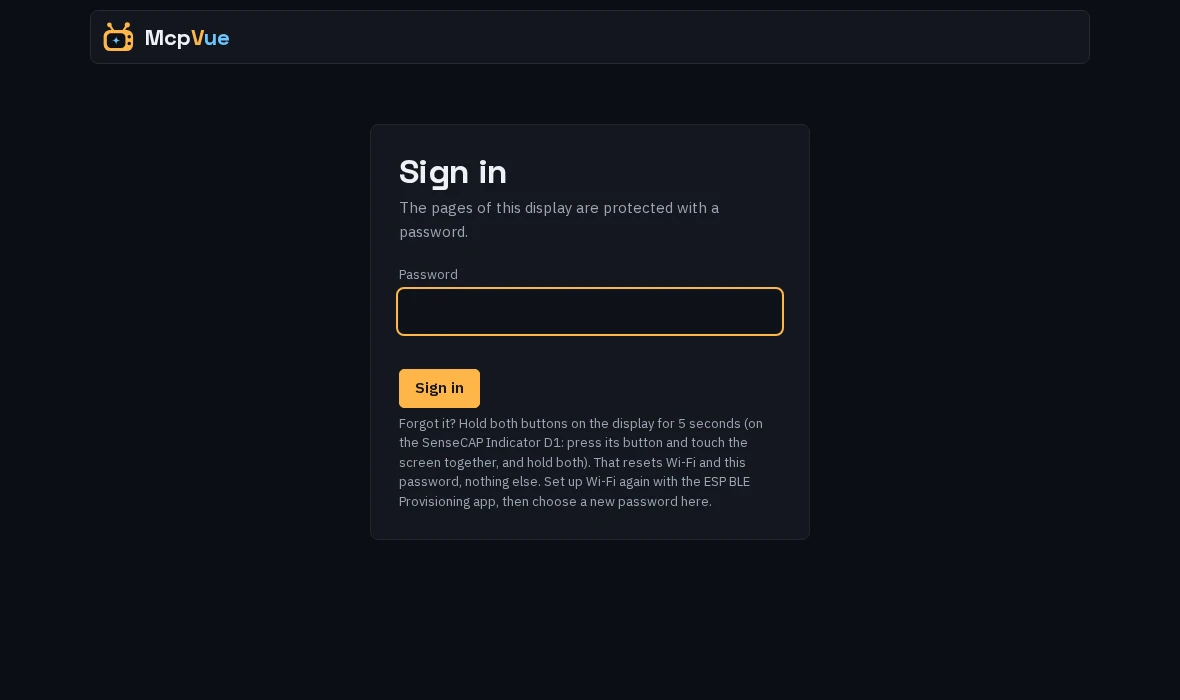
- Off at first. Set any password you like; the pages then ask for it, and Sign out appears in their navigation. Agents keep using MCP without it. Changing or turning it off needs the current password.
- Network and device
- The Wi-Fi network and its signal, the board's address, the MCP address for your agents (with Copy), the board, and its firmware. Name on this network: the board answers as
mcpvue.localat first; give it any other name of 1 to 63 letters a to z, digits and hyphens (not at the start or the end), and it answers as<name>.localwithin a few seconds. If another device on your network already uses the name, the board keeps its old one and the page says which device has it. Agents set up with the old name need the new one; the remote address does not change. Local MCP: off, agents on your network cannot use the board, and it does not take its .local name; its pages stay at its IP address, and remote access is not affected. Scan for networks and switch to another one. A wrong name or password takes the board offline: then choose Reset Wi-Fi in the board's Settings (or use the hold, which also clears the web password: both buttons on the RLCD, the button and the screen on the D1) and set up Wi-Fi again with the app. - Firmware
- The version the board runs and the one before it. Update from a file: pick or drop an McpVue
.binfor this board (0.2.24 or later) and press Install; only from your own network, not through remote access. Paste the release's signature into Release signature so the board can check who made it. The board checks the image before it switches: that it is for this board, newer than the running one, and signed by McpVue. An image without a signature, or not newer, is installed only after you confirm. If the connection breaks, the page asks the board what happened and sends it once more; nothing is installed from a part of an image. - Updates from mcpvue.com
- On a board activated with its licence code, press Link once (with that code): the board makes its own key and from then on checks once a day. Choose the channel (beta gets new versions first), press Check now, and Install when a newer version is shown; the board's own Settings also offers Update McpVue then (choose it twice), and its view menu shows an update tile beside the gear: tap it for Update now or Not now (which hides the tile until the board restarts). Check for updates, near the end of the board's Settings, asks mcpvue.com at once and shows the answer in its own place (Up to date, the new version, or what went wrong) until you leave Settings; a newer version then appears as the tile and the Update McpVue row, and nothing installs until you choose it. It installs only images signed by McpVue, and the link can be revoked on the licence console. Unlink ends the link.
- While it updates
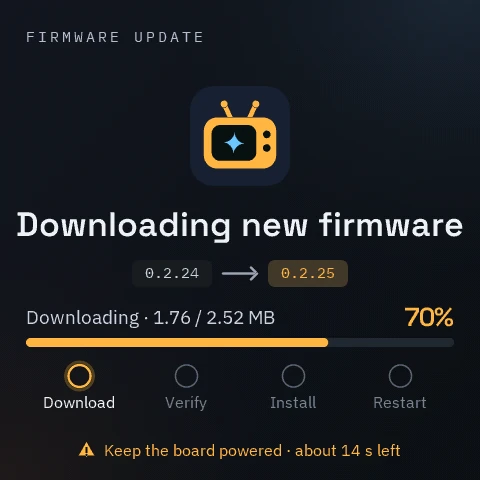
- The board shows Downloading new firmware as soon as you choose the update, first with Getting the update ready while it asks mcpvue.com, then the download (from mcpvue.com; Receiving new firmware for an upload from this page) with the two versions, the progress and the steps (receive or download, verify, install, restart); keep it powered. After the restart it shows Updating McpVue with Finishing the update while the new version proves itself: it has to draw the screen, open its files, connect to Wi-Fi, set its clock from the internet and, with remote access on, open the remote connection (usually 12 to 15 seconds; without a network, after a minute on the screen and the files alone). Then Update complete. If the new version does not start properly, the board goes back to the one before by itself and says so; an update that was refused or cut off, or that could not start (mcpvue.com not reached, already up to date), shows Update stopped and changes nothing, with its reason scrolling across when it is long. The new version's number shows from the start. Lists and settings stay.
13 · Remote access
From anywhere,
end to end.
An optional subscription gives the board its own address on the internet, so agents and your browser reach it away from home. The connection is encrypted between you and the board; the service in between only passes the bytes along.
- How it works
- The board keeps one outgoing connection to McpVue's relay; nothing is opened on your router. It makes its own key pair and gets a certificate for its address, so every connection to
https://<address>is decrypted on the board itself. The relay sees which address a connection is for, and how many bytes pass; not the pages, the messages, or the MCP calls. - Your address
- A random one under
net.mcpvue.com, such as6sdr23r7na.net.mcpvue.com. With the premium subscription you choose the name when you pay, and it replaces the random one; to change it later, ask us. The board's web pages are athttps://<address>and its MCP endpoint athttps://<address>/mcp. Renaming the board on your network does not change it. - Turn it on
- Set a web password first (Settings): through the remote address the pages always ask for it. Then, in Settings, Remote access, enter the activation token from your subscription (20 characters, like ABCD-EFGH-IJKL-MNOP-QRST) and press Turn remote access on. The board checks the token, gets its certificate, and is online in about a minute; the card then shows the address and the remote MCP endpoint with Copy, and a small globe appears beside the clock on the RLCD and the Indicator (green while a browser uses the pages remotely).
- Agents
- Through the remote address, agents need the board's MCP key: press New MCP key and copy it (it is shown once; the board keeps only a hash of it), then give it to your agent as a bearer token:
claude mcp add --transport http screen https://<address>/mcp --header "Authorization: Bearer mvk_…". Agents on this network need the key too makes the board ask for it on your own network as well; off, the local MCP address stays open as before. - State and health
- The card and the status bar's Remote chip show the state (connecting, online, reconnecting, expired, suspended, or an error in words), the ping to the relay, the open connections, the traffic, and when the certificate and the subscription end. The certificate renews itself. Turn remote access off closes it at once; a factory reset forgets the address, the keys, and the certificate.
14 · Clock and screen saver
Quiet when
nothing happens.
After Saver after without a touch or a press (Settings), the board shows its clock; choose Off to keep the last view. Screen off turns the panel off a while after the clock (Never at first on the RLCD). The first touch or press only wakes the screen; a new message wakes it too and opens Messages. With Stay on while a message is unread (on at first) the clock and the screen off wait until every message is read.
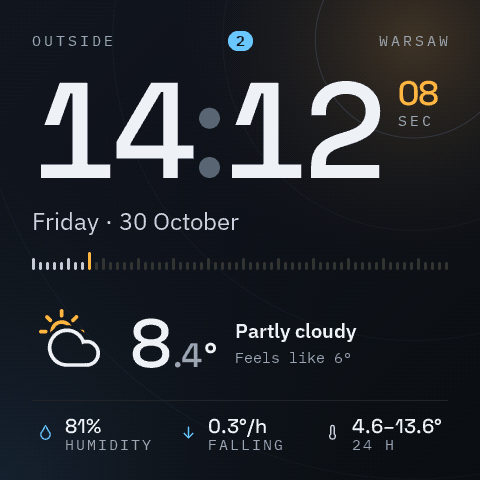
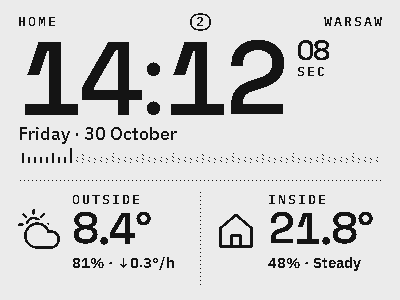
The clock shows the time with the seconds in amber, the date, a bar of 60 marks that fills as the seconds pass, and a seconds dial in the corner that glows amber by day and blue by night. Below it the D1 shows the outdoor weather: the temperature, how it feels, humidity, where it is heading in the next hour, and the range of the next 24 hours. The RLCD shows the outdoor and indoor readings side by side, each with its trend. With Next task chosen in Settings your most urgent task shows below the clock instead: overdue first, then due today, then the next due date; tap it, or press a button, to open it.
Badges in the middle of the clock's top line count what waits for you: red for unread messages, blue for tasks overdue or due today. A tap on the clock goes back to Messages or Tasks, whichever you saw last.
The night clock, turned on in Settings, is a calmer clock for the night hours you choose: the time in amber with the short date above it and the seconds below, a ring of 60 dots that fills as the seconds pass, and a pill with the weather, the night's low, and the next sunrise. It fades in and out at the start and end of the night.
Without Wi-Fi a crossed-out Wi-Fi sign shows on the clock.
15 · Reset and help
When something
is not right.
- Wi-Fi and password
- On the RLCD, hold both buttons for 5 seconds. On the D1, press its button and touch the screen together, and hold both for 5 seconds. The board forgets its Wi-Fi network and the web password, turns remote access off (it needs the password), and restarts into the Wi-Fi setup. Everything else stays: messages, tasks, notes, jobs, dashboards, and the other settings. If a step fails, the screen says what changed and nothing restarts; hold again to finish.
- Another Wi-Fi network
- On the D1 and the RLCD, choose Reset Wi-Fi near the end of the board's Settings, and choose it again within 5 seconds: the board forgets its network, nothing else, and restarts into the Wi-Fi setup. Or switch networks on the settings page.
- Factory reset
- On the D1 and the RLCD, choose Factory reset at the end of the board's Settings, and choose it again within 5 seconds. The board restarts and erases everything: messages, tasks, notes, jobs, the archive, dashboards, settings, the web password, remote access, the board's link for updates from mcpvue.com, and Wi-Fi. The SD card is left as it is: its files, backup copies, and the items moved there stay. It cannot be undone, so back up first (Archive page). If the erase fails, the board tries again at the next start, three times at most, and then says what it could not erase.
- Forgot the password
- Use the hold above: it clears the password and Wi-Fi only. Set up Wi-Fi again with the app, open the board's pages, and choose a new password; then remote access can be turned on again in Settings.
- No Wi-Fi setup screen
- After a Wi-Fi reset the board shows the QR code at once. If it shows Setup could not start instead, restart it (unplug it for a moment); the line under it names the step that failed, which helps us if it keeps happening.
- The pages do not answer
- For a few seconds after a start, during an update, or beside a large backup, restore, or copy to the SD card, the pages may answer slowly or with a short message that the board or its card is busy. Try again a moment later. The lists of older items on the SD card, on the Messages, Tasks, Jobs, Notes, and Archive pages, wait for a busy card by themselves, for up to 12 seconds, saying "The SD card is busy; trying again…".
- The agent cannot connect
- Check that the board is online (Status), that your computer is on the same network, that Local MCP is on (Settings), and that
mcpvue.localresolves; otherwise use the IP address shown in Status. - Two boards on one network
- Every board answers to
mcpvue.localat first, so only one can serve at a time; give each its own name in Settings, Network and device. A board that finds another one already active shows "Another McpVue is on this network" with that board's address, and answers MCP and its pages with an error. It checks every 10 seconds and starts serving on its own about 20 seconds after the other board is gone. - Updates
- From 0.2.24, on the settings page: a file under Firmware, or a linked board's update under Updates from mcpvue.com (12). Or run the flasher again and choose the newest release (for the D1 and the RLCD, the beta). A licensed board is recognised, and your Wi-Fi, settings, lists, and dashboards stay.
16 · The RLCD's stable release
Messages and tasks,
two buttons.
The RLCD's stable release, 0.0.69, runs the earlier message screen: messages and the task list, without notes, jobs, the calendar, or dashboards. Its MCP tools and web pages for messages and tasks work as described above.
| Press | Messages | Task list |
|---|---|---|
| Scroll | Next message | Next task |
| Delete | Deletes the message | Expands or collapses the task |
| Delete twice | Deletes two messages | Deletes the task |
| Hold delete 1.5 s | Deletes all messages | Nothing |
| Hold scroll 1 s | Shows the task list | Shows the messages |
| Hold both 5 s | Factory reset: Wi-Fi and every setting, the web page password included. Tasks and messages stay. | |
On the RLCD, delete is the KEY button and scroll is the BOOT button.
The top line shows the board's IP address with a stripe at its left (green when connected, amber while connecting, red when the network is lost), which message of how many is shown, the battery, and the clock. A press of scroll confirms the message on screen as read.
A deleted message turns into fine dust that drifts up and fades away. While the screen saver runs, the first press only wakes the screen. The saver is a clock with the indoor and outdoor readings, or the screen off with particles that now and then gather into a glowing clock with the weather.
17 · Privacy and security
It stays on
your network.
Messages and tasks go from your computer straight to the board. The board reaches the internet only for the time, a time zone and location lookup by its IP address (ip-api.com), and the weather (Open-Meteo). A board linked for updates also asks mcpvue.com, about once a day and when you check; with remote access on, it keeps its connection to McpVue's relay.
On your network the MCP endpoint has no login: anyone on it can send messages and tasks, unless you turn on Agents on this network need the key too. It rejects requests from web pages of other sites. The web pages are open too until you set a password; on your network the password travels unencrypted, like everything the board serves at http://, so it keeps others on your network out, not someone who can watch the traffic.
Do not forward a port to the board. To reach it from outside, use remote access: there every connection is encrypted with the board's own certificate and decrypted only on the board, the pages need the password, and agents need the board's MCP key.