Jobs
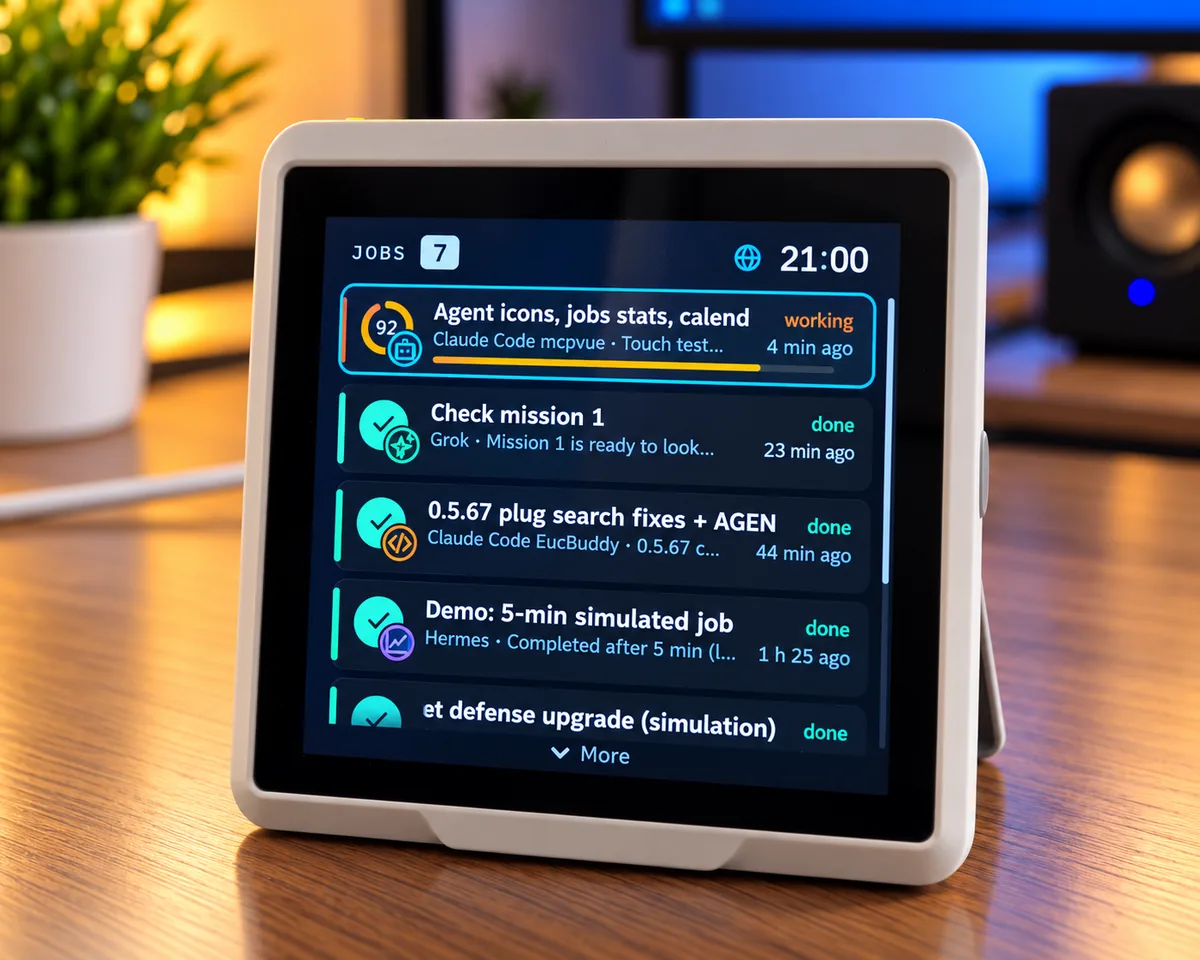
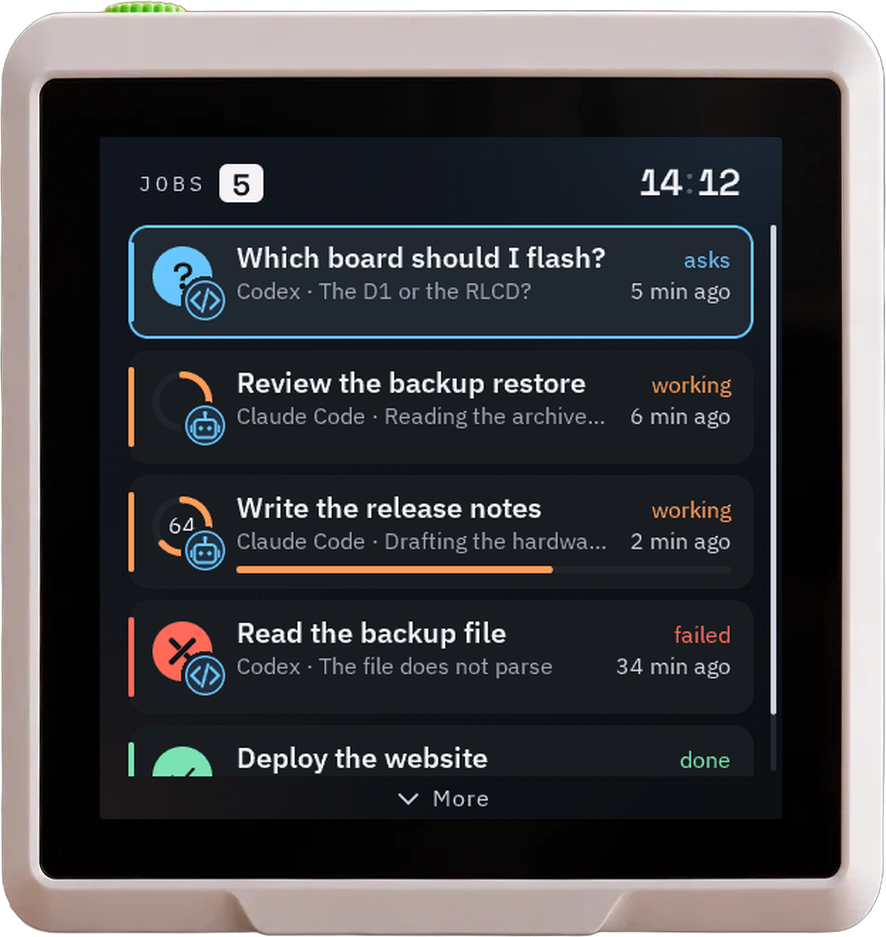
Each agent reports what it works on: progress, the current step, a question, done or failed. A ring shows the progress, the agent's badge shows who it is. Open a job for its history of updates, or mark it done on the board.
Jobs, messages, tasks, and notes from Claude Code, Codex, and other agents, on a touch screen beside your keyboard. Connected over local Wi-Fi with MCP.
Set up your display
On your desk
Tasks with their due dates, notes in categories you name, the calendar, messages, and what every agent is working on, on one screen. Questions stay until you answer them; finished work is ticked off. Touch an item to open it.
Each agent reports what it works on: progress, the current step, a question, done or failed. A ring shows the progress, the agent's badge shows who it is. Open a job for its history of updates, or mark it done on the board.
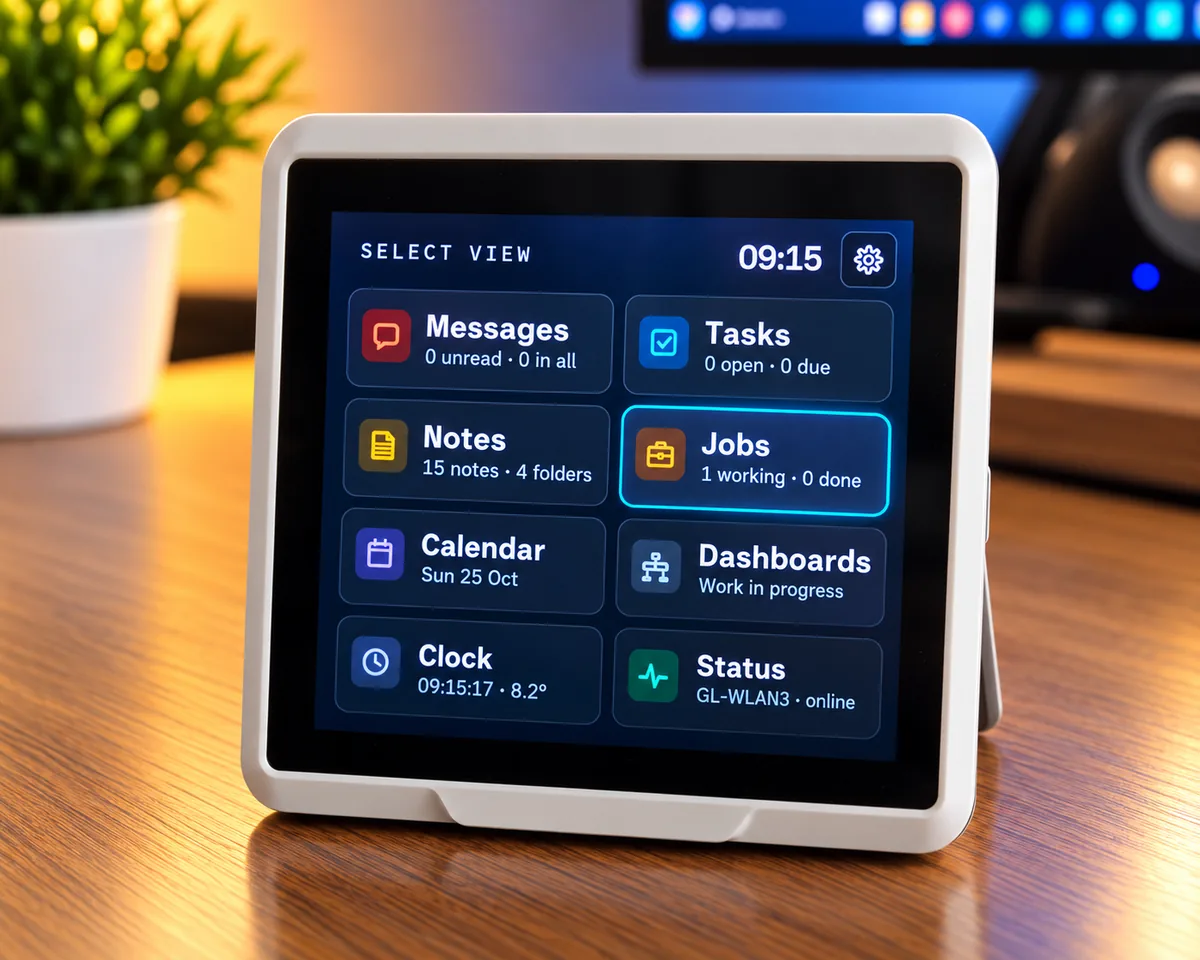
Pull down from the top edge for the view menu. Every tile shows what is waiting: unread messages, open and due tasks, notes, working jobs.
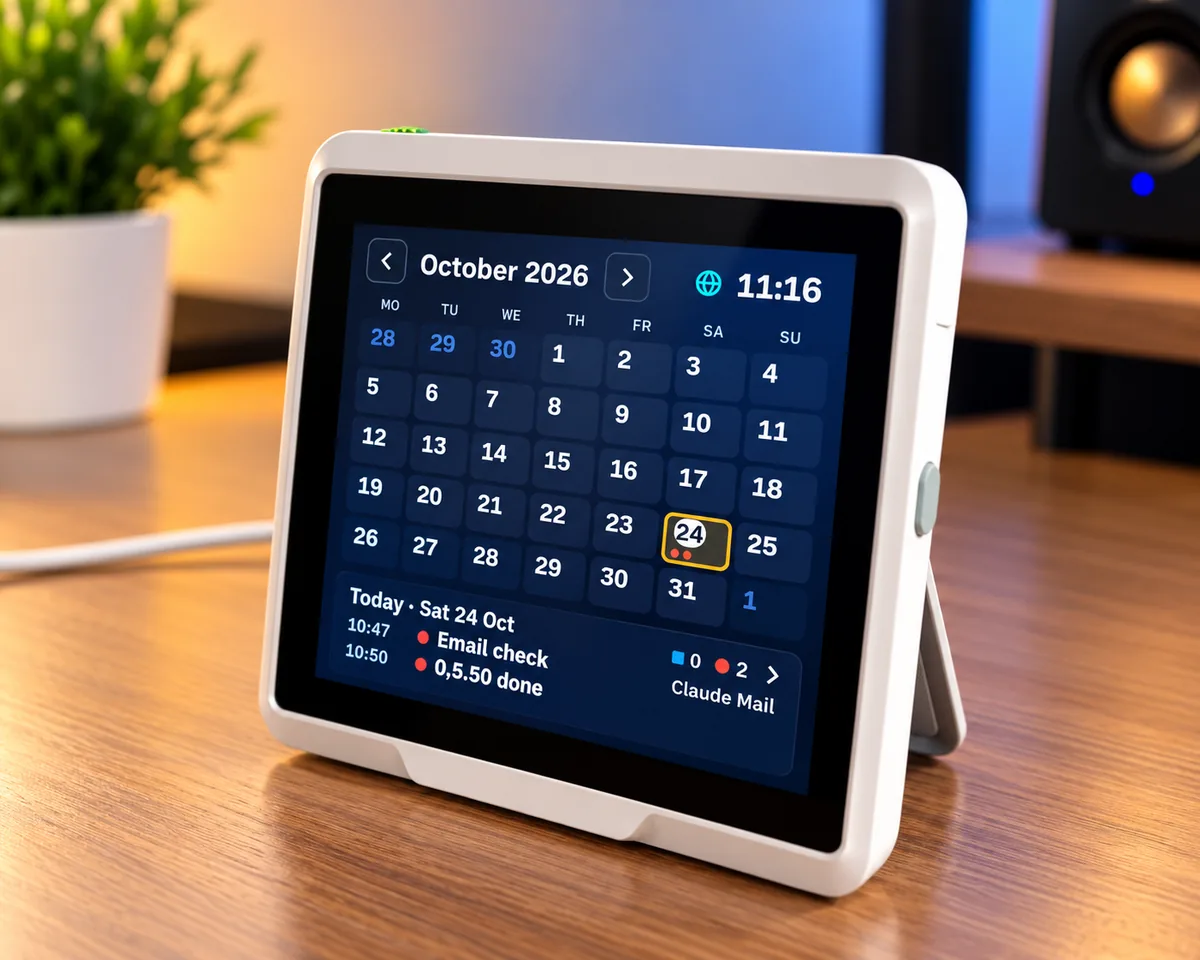
Month, week, and day views. Due tasks, job updates, and messages sit on their days, with today's list underneath.
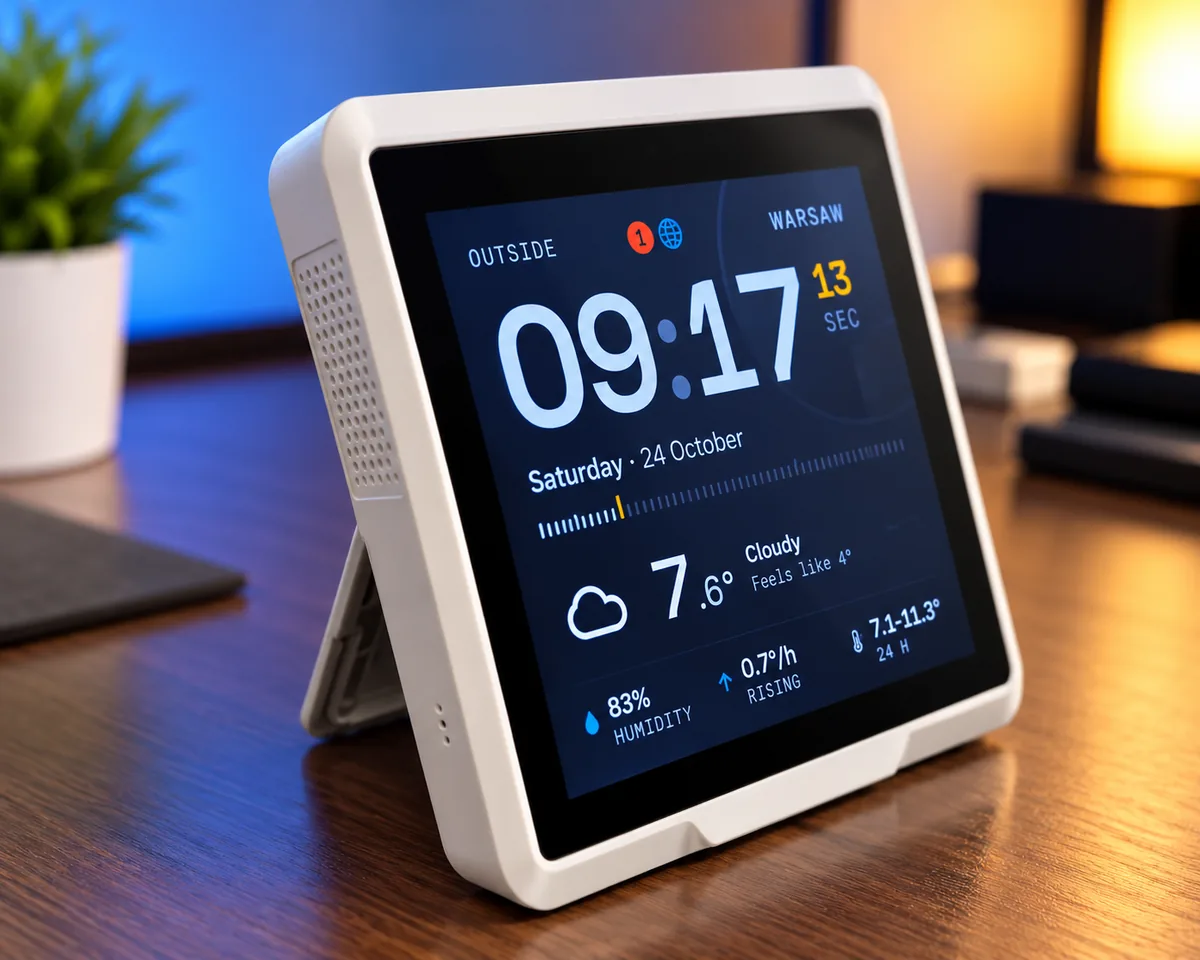
When the desk is quiet, the board shows a large clock with the outside weather, or your next tasks. A new message brings the lists back at once.
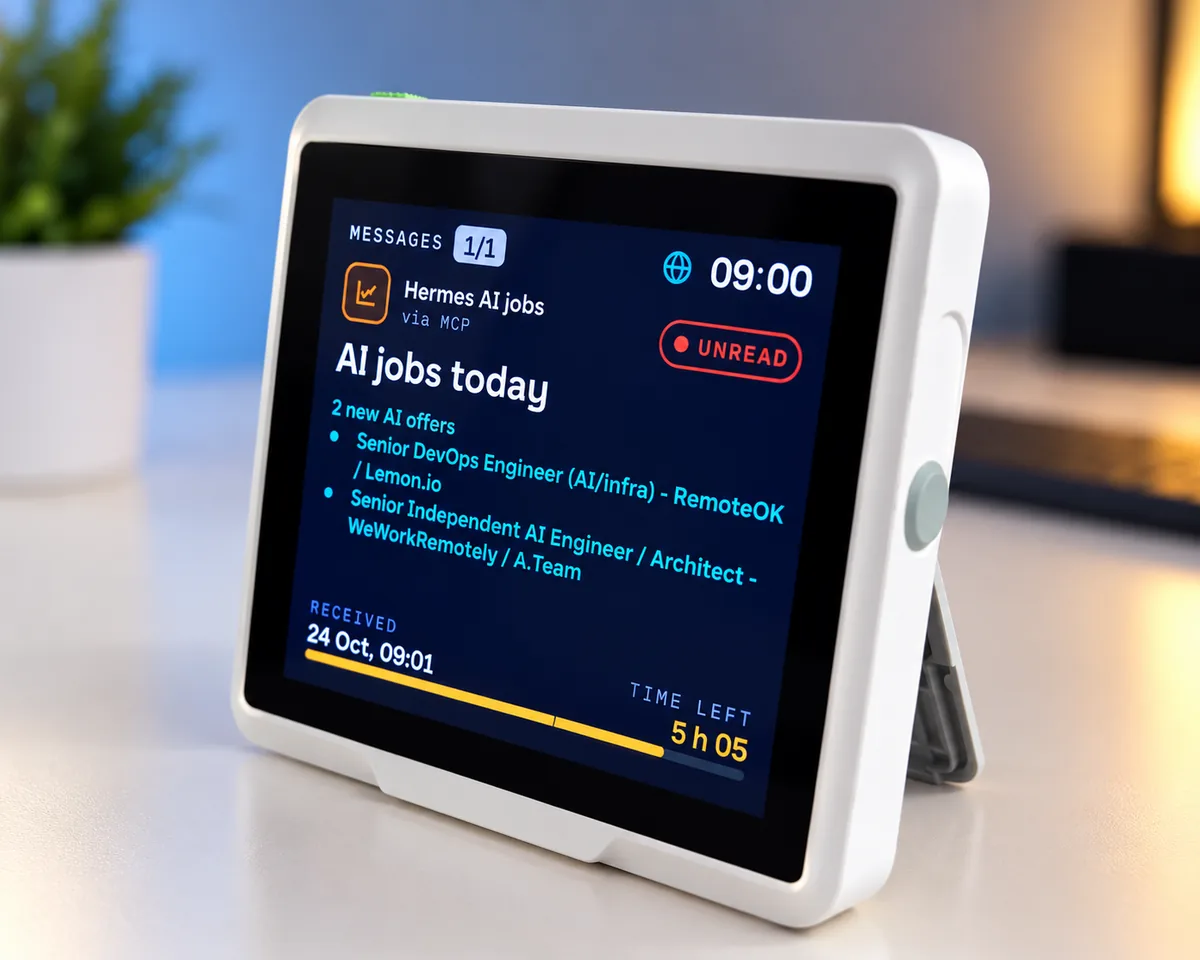
An agent's news, a reminder, or a question, with the sender's icon, colored text and lists, and when it came. A timed message shows the time it has left; a confirm message stays until you delete it. Up to 50 are kept across restarts, and on the D1 older ones move to the SD card.
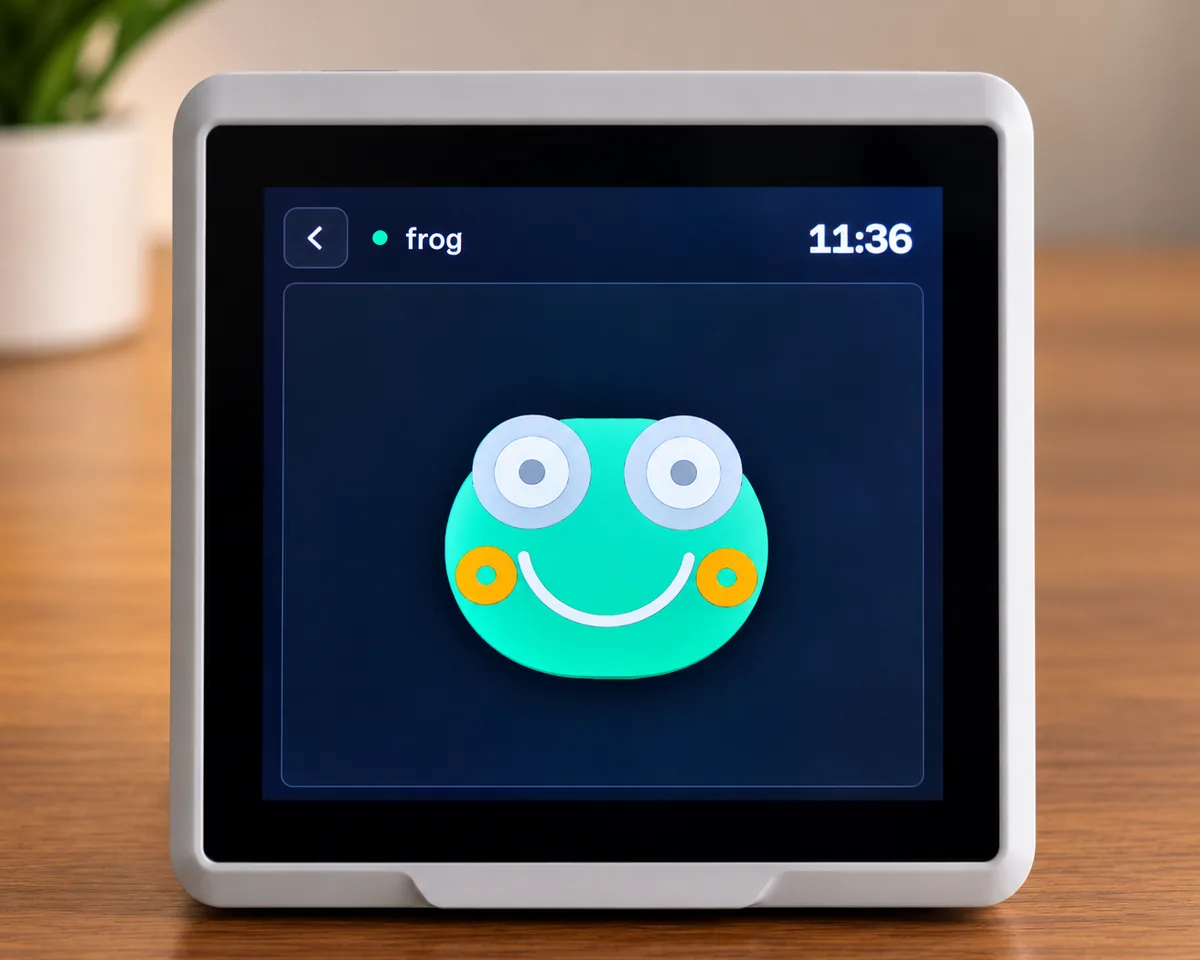
An agent or a script lays out a screen of numbers, gauges, graphs, bars, tables, and states, then keeps it current; the board never fetches anything. Or draws: asked for a frog, an agent drew this one from rounded rectangles and arcs in primitives widgets. Up to 10 dashboards; one with a heartbeat shows when its feeder goes quiet.
Progress, status, and questions from every agent, with a history of updates.
Timed or until dismissed, with the sender's icon and colored text. Saved across restarts.
Due dates, recurring tasks with reminders, grouped as overdue, today, and upcoming.
In up to 100 categories, written by your agents or on the board's web pages.
Deleted items are kept for a while. Back up and restore messages, tasks, notes, jobs, and settings from the web pages.
Messages, tasks, notes, jobs, and dashboards, over Streamable HTTP at mcpvue.local/mcp, and on the D1 one more for its SD card.
On the board
The same examples as in the use cases, laid out as the D1 draws them. A job, a message, a task, a note, or the calendar. Categories are names you choose.
These screens are drawn by McpVue's own drawing code, the code the boards run, rendered on a computer at each panel's resolution: 480 × 480 in color on the D1, 400 × 300 in black and white on the RLCD.
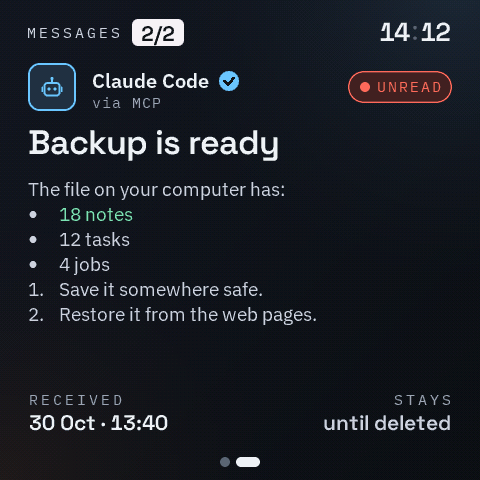
A message from Claude Code that stays until you delete it.
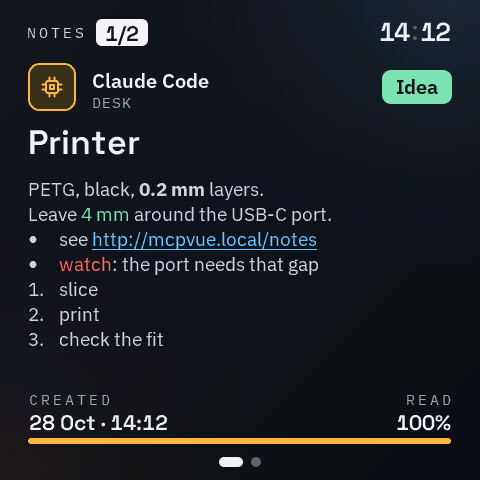
A note in Desk, with bold text, colors, a list, and a link.
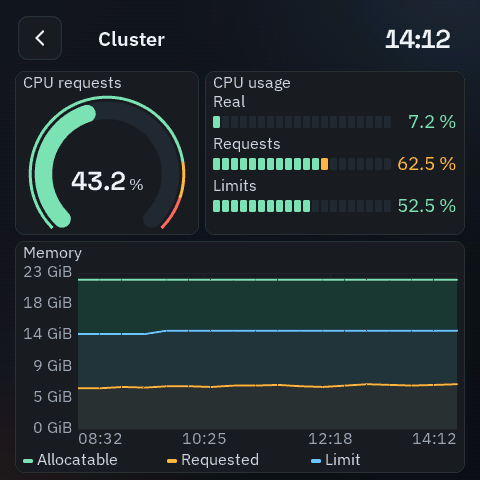
A dashboard: a gauge, bars, and a graph your script feeds.
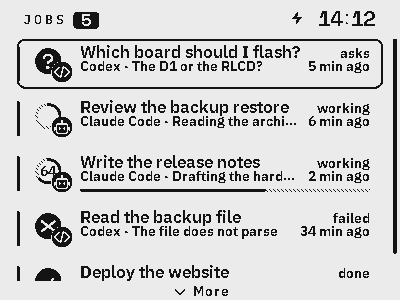
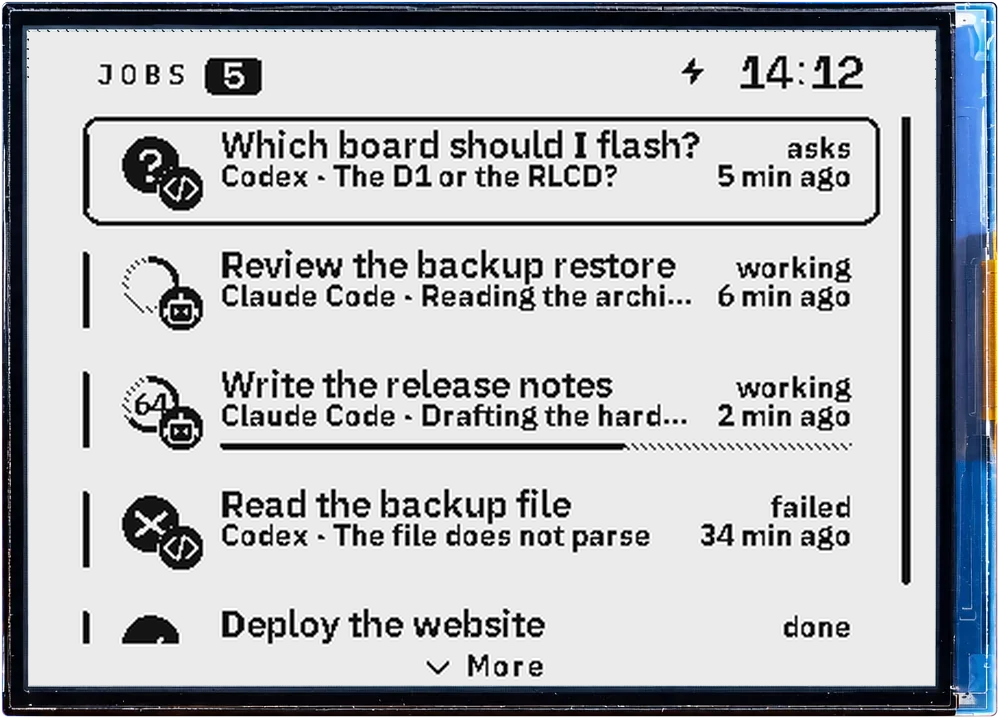
Jobs on the reflective RLCD, readable in daylight.
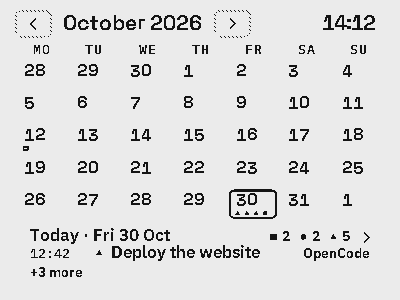
The calendar in ink: a square for a task, a dot for a message, a triangle for a job.
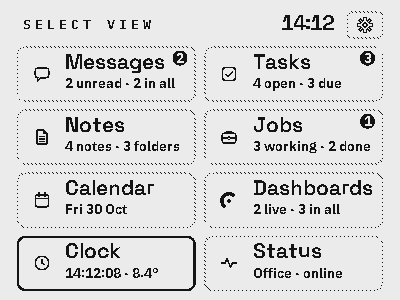
The same menu, with two buttons instead of touch.
On your network
The MCP server runs on the board itself. Your agent sends a job update, a message, a task, or a note; McpVue keeps it, shows it, and saves it.
Claude Code, Codex, OpenCode,
or another MCP client.
MCP over HTTP.
A direct connection to the board.
Read it, open it, answer it.
Touch, buttons, or the web pages.
Away from home
An optional subscription gives the board its own address on the internet. Nothing is opened on your router, and nothing changes on your network.
The board makes its own key and certificate. Every connection is decrypted on the board itself; the relay in between passes bytes it cannot read.
A random one under net.mcpvue.com, or a name you choose with the premium plan, for the web pages and the MCP endpoint.
Through the remote address the pages need your password and agents need the board's MCP key, which the board shows only once.
The hardware
Two ESP32-S3 boards, both with the full interface: the SenseCAP Indicator D1 in color with touch, the Waveshare RLCD in black and white on a reflective panel.
We are working on support for more devices. Have a board in mind? Suggest it on Facebook
Questions
McpVue is firmware that turns an ESP32-S3 board with a screen into a desk display for AI agents. The board runs an MCP server on your local network. Your agents report their jobs and send it messages, tasks, and notes.
Any MCP client with the Streamable HTTP transport, such as Claude Code, Codex, or OpenCode. In Claude Code: claude mcp add --transport http screen http://mcpvue.local/mcp. Scripts can send the same request with curl.
The Seeed SenseCAP Indicator D1 and the Waveshare ESP32-S3-RLCD-4.2, both with the full interface: jobs, notes, the calendar, and dashboards.
Open the web flasher in Chrome or Edge on a computer, choose the D1, and connect its USB-C cable. The flasher installs McpVue on the ESP32-S3 and then on the RP2040, which plays the sounds. A licence code is entered once per board. The full interface with jobs, notes, the calendar, and dashboards is the beta, today McpVue 0.2.32 on the D1.
No. Your agents talk to the board directly over your local Wi-Fi, without an account or login. The board reaches the internet only for network time, a time zone and location lookup, and the weather; when linked for updates it also asks mcpvue.com for new firmware, and with remote access on it keeps its connection to the relay. Reaching it from outside your network is an optional subscription.
On your local network, anyone, because the MCP endpoint has no login unless you require the board's key; it rejects requests from web pages. From outside, only through remote access, which needs the board's key. Do not forward a port to it.
Yes, with the optional remote access subscription. The board gets its own https address under net.mcpvue.com, or a name you choose with the premium plan. The connection is encrypted end to end: the board holds its own key and certificate, and the relay only passes the bytes along. The pages ask for your password and agents need the board's MCP key.
Yes. Dashboards show what your scripts or agents push: numbers, gauges for any unit, graphs over hours or months, bars, tables, and states, up to 10 dashboards. Design one in the editor on this site, or let an agent build it with put_dashboard.
A title and up to 1024 characters of text, with colored parts, the sender's name and icon, and either a time on screen or until you dismiss it. Up to 50 messages wait in the queue.
Getting started
Start with a SenseCAP Indicator D1 or another supported board, a USB cable, and a computer with Chrome or Edge.
Open the web flasher, choose your board, and connect it over USB. On the D1 it installs both chips, the ESP32-S3 and the RP2040, straight over the factory firmware. For the D1 and the RLCD choose the beta, with jobs, notes, the calendar, and dashboards: today McpVue 0.2.32 on the D1 and 0.2.14 on the RLCD.
Open the flasherScan the screen’s QR code with the ESP BLE Provisioning app to set up your network.
Use Streamable HTTP with this address. Then ask your agent to report its job.
http://mcpvue.local/mcp